Blog
How to Convert Old Question Papers into an Import-Ready CSV with AI

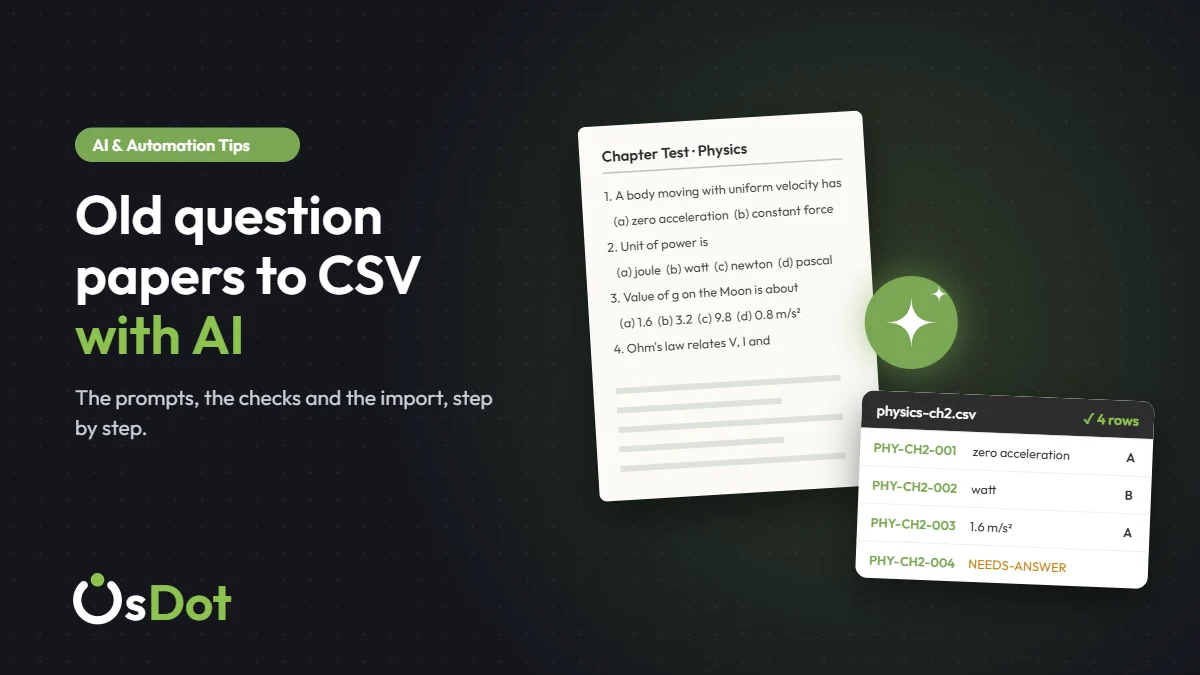
Every coaching institute has them: folders of old question papers saved as PDFs, chapter tests typed up in Word, answer keys on the last page. They’re full of good questions, and almost none of them are in a form your exam software can use.
Retyping them is slow and error-prone. An AI assistant such as ChatGPT, Claude or Gemini can do the restructuring for you in minutes: take messy text from a PDF or Word file and turn it into clean rows that match your question bank’s CSV template. This guide shows the exact prompts we use, how to handle maths and answer keys, and, most importantly, how to check the output so mistakes don’t reach your students.
Key takeaways
- Give the AI your template’s exact header row and one finished example row. That single step fixes most formatting problems.
- Work in batches of 20 to 30 questions, not a whole 200-question paper at once.
- Tell the AI to copy questions exactly and never invent answers. Mark unknown answers for a human to fill in.
- Check a sample against the original paper, then let your importer’s validation catch the rest.
In this guide
Before you start: what you need
- Your question bank’s CSV template. Download it from your exam software’s import page. The AI needs the exact column names.
- The source file. A PDF, Word document or even a photo of a printed paper.
- An AI assistant. ChatGPT, Claude or Gemini all handle this well. A paid plan helps with long files, but the free versions work in small batches.
- The right to use the questions. Your own papers or material you’re licensed to use. Don’t upload papers that contain students’ names or marks.
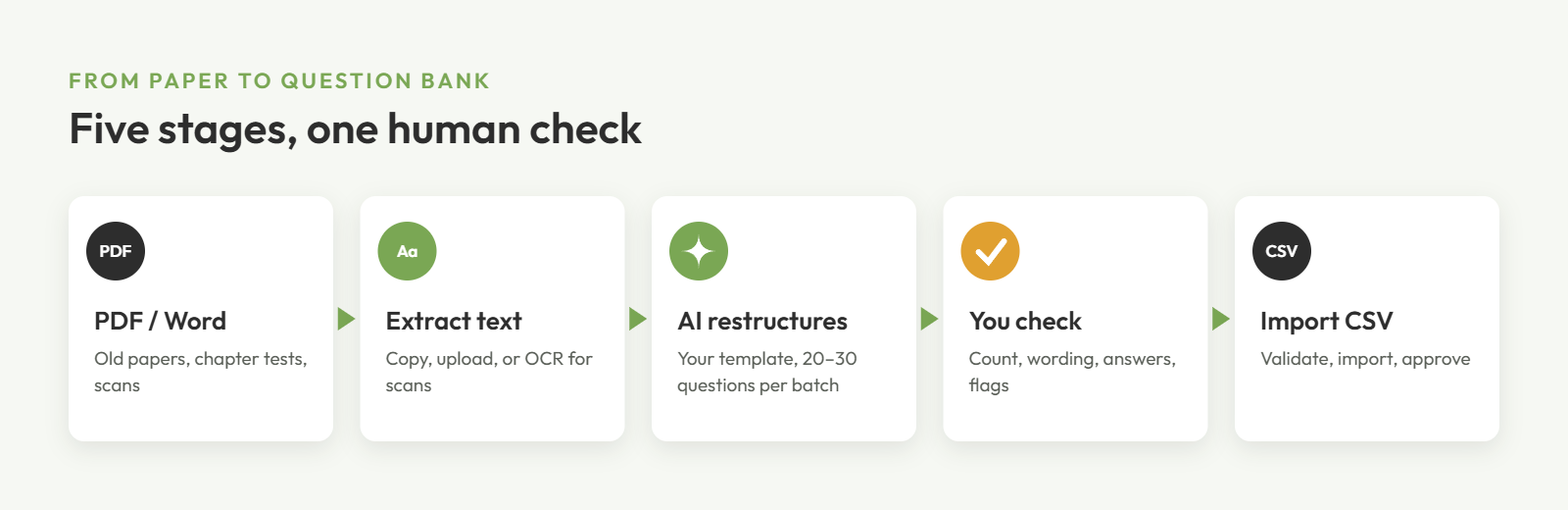
Step 1: Get the text out of the PDF or Word file
How you start depends on the kind of file you have:
| Source | What to do |
|---|---|
| Word document (.docx) | Copy and paste the text straight into the chat, or upload the file. |
| PDF made on a computer | Select the text and copy it, or upload the PDF. If you can highlight words in the PDF, the text is there. |
| Scanned PDF or photo | There’s no real text yet. Upload the images to an AI assistant that reads images, or run the file through OCR first (Google Drive and Microsoft OneNote both do this). |
Scanned papers need the most care. OCR often confuses similar characters, such as O and 0 or l and 1, and drops symbols like √ and π. Plan to check those questions more closely in step 4.
Step 2: Use a prompt that matches your template
Vague prompts like “convert these questions to CSV” give you a CSV, just not one your importer will accept. The fix is to hand the AI your exact header row and one row you’ve filled in yourself. Here’s the prompt we use. Replace the parts in square brackets:
You are helping me move exam questions into my question bank.

Convert the questions below into CSV rows that match this header exactly:
[paste your template's header row]

Here is one correctly filled example row:
[paste one row you filled in yourself]

Rules:
- Copy every question and answer choice word for word. Do not rephrase, correct or shorten anything.
- One question per row. Keep the questions in their original order.
- Use keys in this pattern: [for example PHY-CH3-001, PHY-CH3-002 ...]
- Put the correct answer only where the source clearly gives it. If the answer is not in the source, leave that cell empty and add NEEDS-ANSWER in the notes column. Never guess an answer.
- Write maths and chemistry in LaTeX, for example \(x^2\) and \(\ce{H2O}\).
- If a question refers to a diagram or image, add NEEDS-IMAGE in the notes column.
- Put any text that contains a comma inside double quotes.
- Return only the CSV in a single code block, with no explanation.

Questions:
[paste 20–30 questions here]
If your template has no notes column, ask the AI to list the NEEDS-ANSWER and NEEDS-IMAGE questions separately after the code block instead.
Why batches of 20 to 30? Long outputs are where AI assistants start to drift: skipping a question, merging two, or quietly “improving” the wording. Smaller batches are faster to check, and if one goes wrong you only redo that batch.
Step 3: Handle answer keys, maths and diagrams
These three cause most of the trouble, so deal with them on purpose.
Answer keys at the end of the paper
Many papers print the answers on the last page (“1-B, 2-D, 3-A…”). Paste that key after the questions and add one line to the prompt: “Use this answer key to fill the correct answer column, matching by question number.” Then spot-check five or six rows against the original key, especially near page breaks where numbering often slips.
Maths and chemistry
Formulas copied out of a PDF often arrive broken: superscripts flattened (x2 instead of x²), fractions split across lines. AI assistants are good at rebuilding them as LaTeX, which most modern exam software can render. Asking for LaTeX also makes the CSV safer, because everything stays plain text. Still, read every formula once. A misplaced bracket changes the answer.
Diagrams and images
A CSV can’t hold images. Let the AI flag those questions with NEEDS-IMAGE, import them as text, and attach the diagram afterwards in your question editor. Crop the diagram from the original paper or redraw it if the scan is poor.
Step 4: Check the output before importing
AI does the typing. You still own the accuracy. Paste the CSV into a spreadsheet (or save it as a .csv file and open it) and run through this checklist:
- Count. The number of rows matches the number of questions in the batch.
- Wording. Compare five random questions with the original, word for word.
- Answers. Check every correct answer against the source key, or at least a solid sample if the key is printed cleanly.
- Flags. Filter the notes column for NEEDS-ANSWER and NEEDS-IMAGE and deal with each one.
- Keys. No duplicates. A quick
=COUNTIF(A:A, A2)helper column shows any repeats. - Encoding. Save the final file as CSV UTF-8 so symbols survive.
Watch for confident mistakes. The most common AI error here isn’t a formatting problem. It’s a plausible-looking correct answer that the source never gave, or a question “fixed” into something slightly different. The “never guess, copy word for word” rules in the prompt reduce this a lot, but only a human check catches the rest.
Step 5: Import and review
Upload the file through your exam software’s import page and let it validate every row. Fix whatever it flags, re-upload, and import once everything passes. If you haven’t done a CSV import before, our step-by-step guide on how to import questions from a CSV file covers templates, encoding and the common errors in detail.
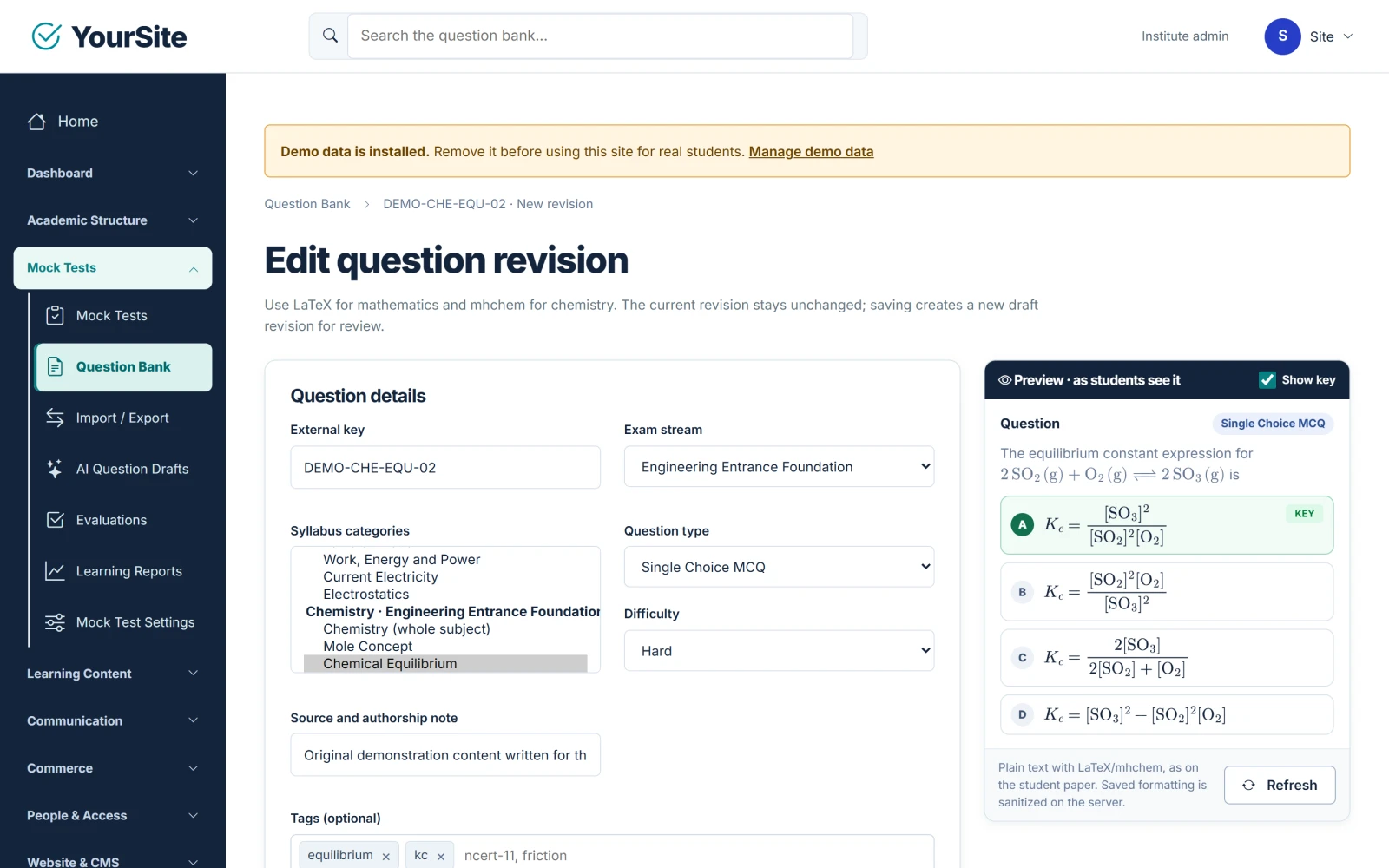
Treat imported questions as drafts. Preview a few from each batch the way students will see them, check that formulas render, and only then add them to live tests.
How this works in Academy & Exam OS
We built Academy & Exam OS so that AI-assisted question entry stays safe:
- The CSV import validates every row first and is all-or-nothing, so a bad batch never half-imports.
- Imported questions arrive as drafts. An owner or administrator approves them before they can appear in a test.
- Maths and chemistry are written in LaTeX and mhchem, and the question editor shows a live preview exactly as students will see it.
- If you connect an AI provider, owners and administrators can also generate new question drafts inside the platform. Staff review them before anything is saved to the question bank.
Academy & Exam OS by OsDot™
Turn old papers into a living question bank
- Validated CSV import, with every question reviewed before use
- LaTeX and chemistry notation with a live student preview
- Optional AI question drafts and AI-generated MCQ practice for students
- Self-hosted, full source code, one-time price from $67
FAQ
Can ChatGPT read a scanned question paper?
Yes, if you upload it as an image or PDF to an AI assistant that reads images, such as ChatGPT, Claude or Gemini. Results depend on scan quality, so check symbols, numbers and formulas carefully, or run the scan through OCR first.
Is it safe to upload question papers to an AI tool?
For your own question papers, generally yes. Leave out anything with students’ names, marks or other personal data, and check your AI tool’s data settings, for example whether your chats can be used for training.
Which AI assistant is best for converting questions to CSV?
ChatGPT, Claude and Gemini all do this well. The prompt matters more than the tool: give it your exact header row and one example row. Try the same batch in two tools and keep whichever needs fewer fixes.
Can AI fill in correct answers when the paper has no answer key?
It can suggest answers, but treat them as unverified. A subject teacher should confirm every one. That’s why our prompt tells the AI to flag missing answers with NEEDS-ANSWER instead of guessing.
How many questions should I convert in one prompt?
Around 20 to 30. Larger batches make it more likely that the AI skips, merges or rewords questions, and they take longer to check.
Start with one paper
Pick a single chapter test, run one batch of 20 questions through the prompt, check it, and import it. Once you’ve done that end to end, converting the rest of the archive is just repetition, and an afternoon’s work can bring years of questions back into use.
More practical guides like this are on the way. Join the OsDot newsletter to get them first.