Blog
How to Import Questions from a CSV File into Exam Software

You have 400 questions sitting in a spreadsheet, a stack of old question papers, or a Word file a teacher sent over. Typing them into your exam software one by one would take days. A CSV import does it in one go, as long as the file is prepared properly.
This guide walks through how to import questions from a CSV file into online exam software: how the file should be laid out, how to save it so nothing gets mangled, and how to deal with the errors that almost always turn up on the first try. The steps work for most quiz and test platforms. At the end we show how it works in our own exam software.
Key takeaways
- Always start from your software’s own CSV template. Column names and order matter.
- Give every question a unique key. It’s what lets you update questions later without creating duplicates.
- Save as CSV UTF-8, not plain CSV, or symbols and formulas can break.
- Validate before you import, fix the flagged rows, and review imported questions before they go into a live test.
In this guide
Why import questions from a CSV file
A CSV (comma-separated values) file is just a spreadsheet saved as plain text. Every exam platform worth using can read one, and every spreadsheet app can write one. That makes it the common language between the place your questions live today and the place you want them to be.
The practical benefits are hard to argue with:
- Speed. Hundreds of questions go in with one upload instead of hundreds of form submissions.
- Teamwork. Several teachers can write questions in a shared Google Sheet, and one person imports the lot.
- A backup you can read. The same file format works for exporting, so your question bank never gets locked inside one tool.
- Bulk edits. Fixing a typo across 50 questions is easier in a spreadsheet than in 50 edit screens.
What a question CSV file looks like
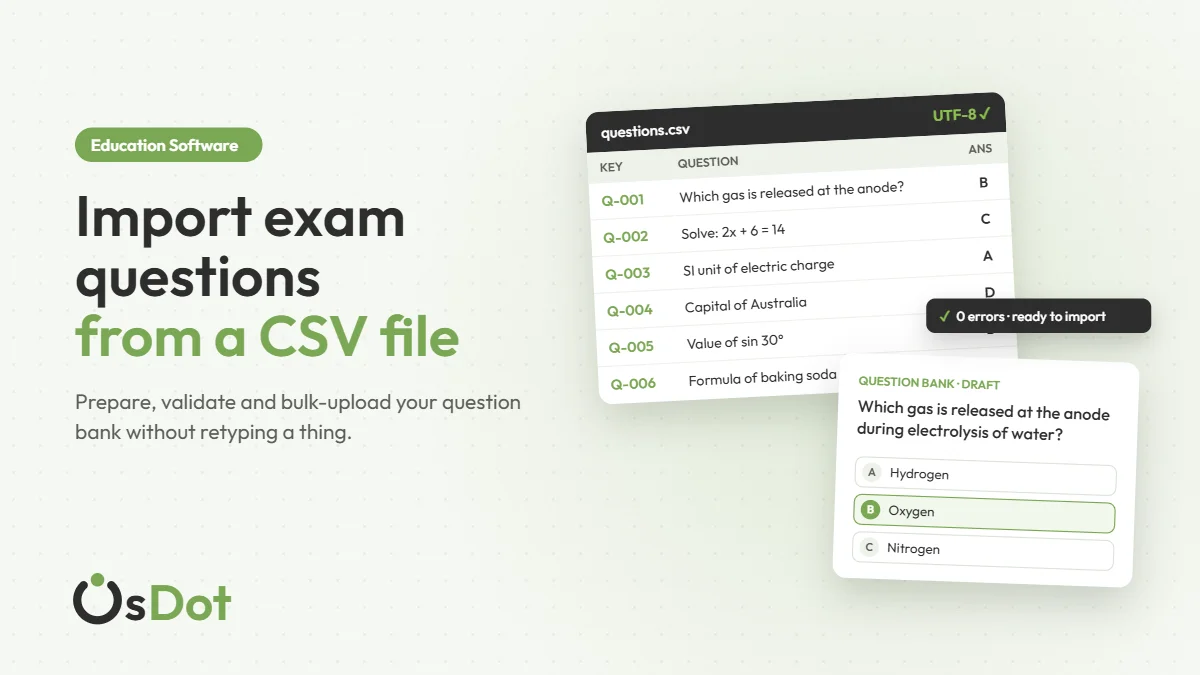
One row is one question. The columns describe it: the question text, the answer choices, which choice is correct, and details such as subject and difficulty. Here is a simplified example of the kind of layout most exam software expects:
| key | type | question | option_a | option_b | option_c | option_d | correct | difficulty |
|---|---|---|---|---|---|---|---|---|
| CHEM-ELEC-001 | single | Which gas is released at the anode during electrolysis of water? | Hydrogen | Oxygen | Nitrogen | Chlorine | B | easy |
| MATH-ALG-014 | single | Solve for x: 2x + 6 = 14 | 2 | 3 | 4 | 8 | C | easy |
| PHY-UNIT-003 | multiple | Which of these are SI base units? | Metre | Newton | Kelvin | Joule | A,C | medium |
A few columns deserve special attention:
- Key (or ID). Your own unique reference for the question, such as
CHEM-ELEC-001. A readable pattern (subject, chapter, number) pays off when you have thousands of questions. Good importers use this key to spot duplicates and to update a question instead of adding a second copy. - Type. Single choice, multiple correct, numerical, written. Each type needs different answer columns, so check the template’s notes.
- Correct answer. Pick one format and stick to it. If the template wants a letter (B), don’t write the answer text (Oxygen) in some rows.
- Maths and chemistry. If your software renders LaTeX, you can write formulas as plain text, for example
\(x^2 + 5x + 6 = 0\). They survive a CSV round trip as long as the file is saved as UTF-8.
How to import questions from CSV, step by step
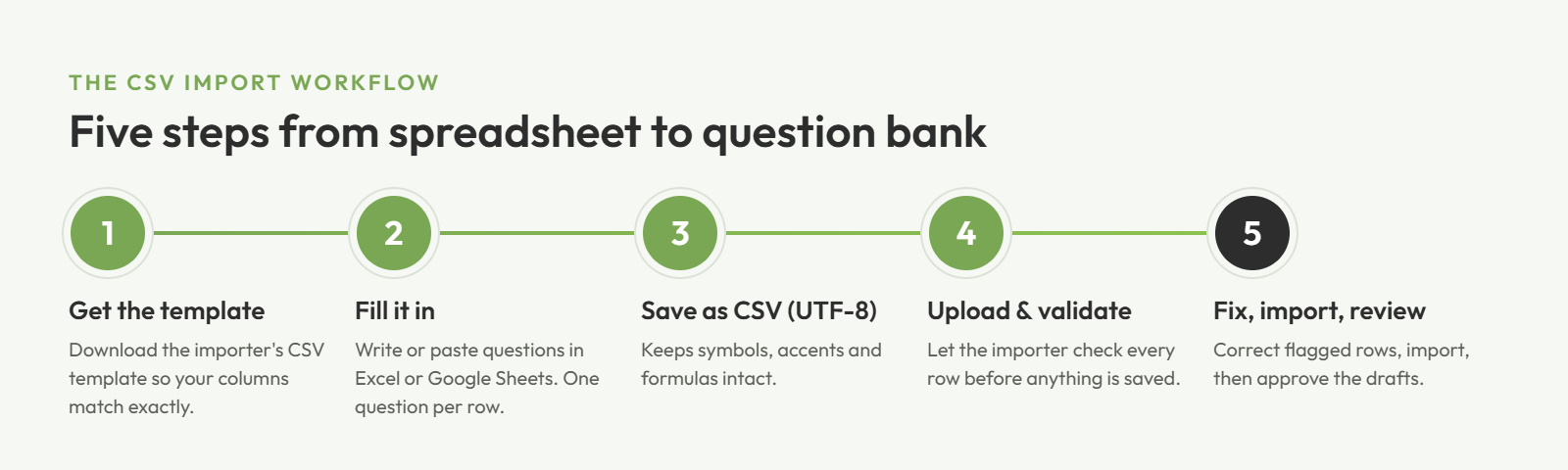
Step 1: Start from the template
Look for a “Download template” or “Sample CSV” link on your software’s import page and use that file as your starting point. Don’t rename the header row, don’t reorder columns, and don’t delete columns you think you won’t need. Leave optional cells empty instead.
Before filling in hundreds of rows, add three or four test questions and run them through steps 3 to 5. Finding out that your answer format is wrong after five questions is a lot better than finding out after five hundred.
Step 2: Fill in your questions
Excel, Google Sheets and LibreOffice Calc all work. A few habits keep the file clean:
- One question per row, with no blank rows in between.
- Don’t merge cells or add colours to “mean” something. The importer only sees text.
- Commas inside a question are fine. The spreadsheet app wraps those cells in quotes when it saves the CSV.
- Avoid line breaks inside a cell unless the template says they’re supported.
- Use the exact values the template lists for fields like type and difficulty (“medium”, not “Med”).
Tip: If several teachers contribute, give each person a range of keys (for example BIO-T1-001 to BIO-T1-200). It stops two people from using the same key, which is the most common reason imports get rejected.
Step 3: Save the file as CSV UTF-8
This is the step that quietly breaks the most imports. UTF-8 is the text encoding that keeps characters like °, √, é, Greek letters and non-English scripts intact. Older “CSV” options can turn them into question marks or garbled symbols.
- Excel (Windows or Mac): File → Save As → choose CSV UTF-8 (Comma delimited) (*.csv).
- Google Sheets: File → Download → Comma Separated Values (.csv). Sheets saves as UTF-8 by default.
- LibreOffice Calc: File → Save As → Text CSV, then pick Unicode (UTF-8) as the character set.
Keep your original .xlsx file as the master copy and export a fresh CSV each time. Editing the CSV directly in Excel and saving again is how leading zeros disappear and long numbers turn into 1.23E+15.
Step 4: Upload and validate
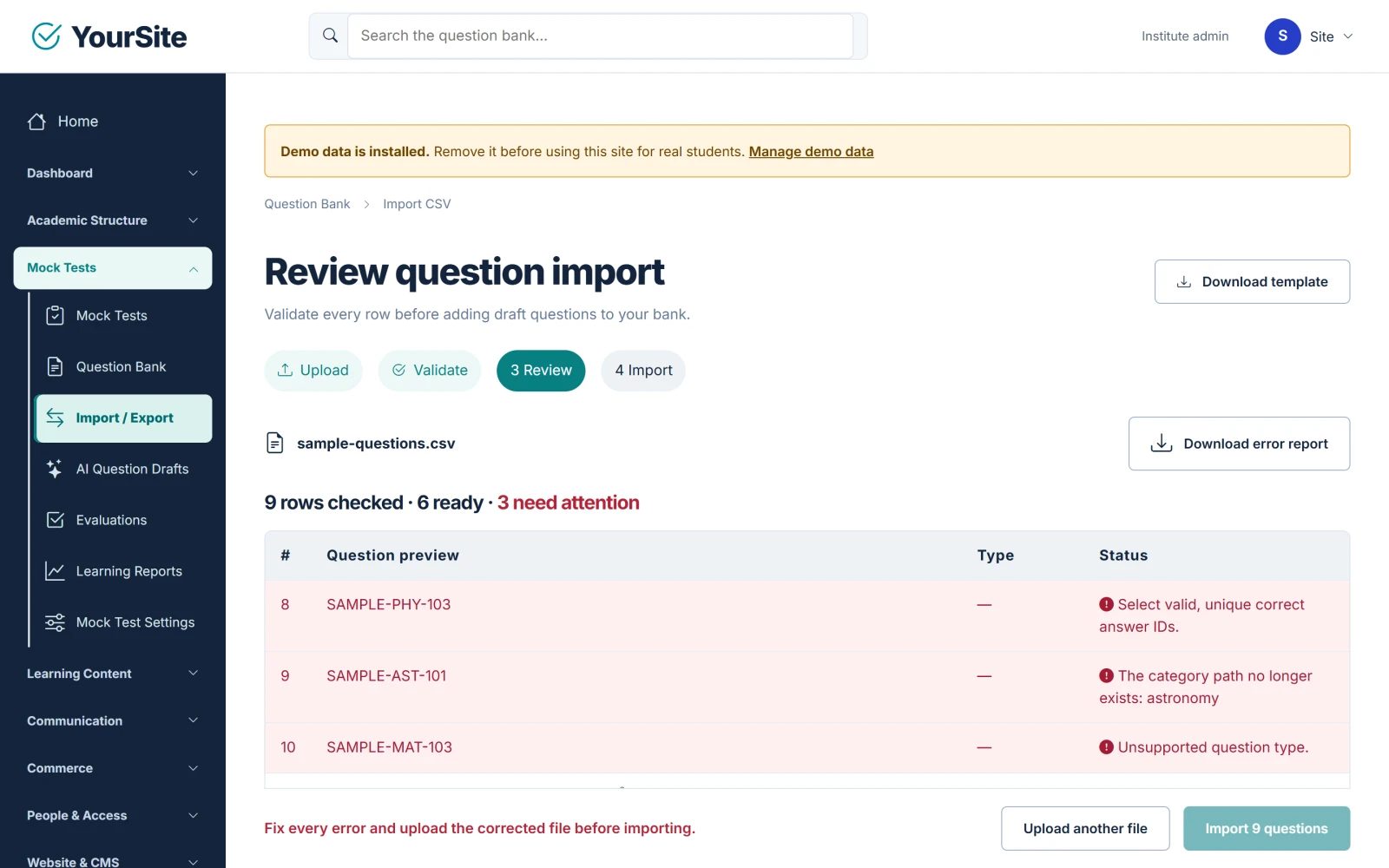
Upload the file on your software’s import page. Good exam platforms check every row before saving anything and show you a summary: how many rows are ready and which ones need attention, usually with the row number and the reason. If your software offers an error report you can download, use it. Fixing 30 errors from a list beats hunting for them on screen.
Be wary of tools that import “whatever they can” and silently skip bad rows. You end up with a question bank that’s 94% complete and no easy way to tell which 6% went missing.
Step 5: Fix, import and review
Correct the flagged rows in your master spreadsheet, export the CSV again, and re-upload until every row passes. Then run the import.
Don’t send imported questions straight into a live test. Open a sample from each subject and check them the way a student will see them: formulas rendered, the right option marked correct, explanations in place. Ten minutes of review here saves a lot of awkward re-marking later.
Common CSV mistakes and how to fix them
| Problem | What you see | Fix |
|---|---|---|
| Wrong encoding | Symbols like ° or é show as ? or é | Re-save as CSV UTF-8 |
| Renamed or reordered columns | “Unknown column” or every row fails | Copy your data back into a fresh template |
| Duplicate keys | Rows flagged as duplicates, or questions overwritten | Give every question its own key; check with a COUNTIF formula |
| Mixed answer formats | “Invalid correct answer” on some rows | Use one format throughout (for example letters A–D) |
| Empty required cells | “Required field missing” | Filter the column for blanks before exporting |
| Excel number formatting | Keys like 0012 become 12; long numbers become 1.2E+15 | Format key columns as Text before typing |
| File too big | Upload rejected | Split into several files by subject or chapter |
To find duplicate keys before you upload, add a helper column in Excel or Sheets with =COUNTIF(A:A, A2) and filter for anything greater than 1.
Turning a PDF or Word question paper into a CSV
Most institutes have years of questions locked in PDFs and Word documents. You don’t have to retype them. Copy the text into a spreadsheet and split it into columns, or use an AI assistant such as ChatGPT or Claude to restructure it: paste a page of questions along with your template’s header row and ask it to return the questions in that exact CSV format.
AI is fast at this, but it does make mistakes, especially with answer keys and formulas. Treat its output as a first draft, compare a sample against the original paper, and let your importer’s validation catch the rest. Our guide on converting old question papers to CSV with AI walks through it, prompt included.
The easier way: CSV import in Academy & Exam OS
We built Academy & Exam OS, a self-hosted mock test and online exam platform for coaching institutes, and its question import follows every rule in this guide. Here’s how it works:
- In the staff area, open Mock Tests → Import / Export and click Download template to get
question-template-v1.csv. - Fill it in and save as UTF-8. One file can hold up to 5,000 questions (20 MB).
- Choose what happens when a question’s external key already exists: flag it for correction, or create a new draft revision of that question.
- Click Upload and validate. The summary shows how many rows were checked, are ready and need attention, with errors listed first. Download error report gives you the problems as a CSV.
- Once every row is valid, click Import. The import is all-or-nothing, so you never end up with half a question bank.
- Imported questions arrive as drafts. An owner or administrator approves them before they can be used in a test.
Questions support single choice, multiple correct, numerical (with a tolerance) and written answers, plus shared reading passages. Maths and chemistry are written in LaTeX and mhchem and shown to students fully rendered. When you need the questions back out, the question bank exports to CSV too.
Academy & Exam OS by OsDot™
Run your own mock test and exam platform
- Question bank with CSV import and export, revisions and approval
- Mock tests with section-wise marking and negative marking
- Website, student portal and a Flutter mobile app, under your brand
- Self-hosted, full source code, one-time price from $67
The full walkthrough is in the Question Bank guide, and there’s a six-minute video tutorial on building the question bank.
FAQ
Can I import questions from an Excel file directly?
Most exam software imports CSV rather than .xlsx. Keep your questions in Excel and export a copy with File → Save As → CSV UTF-8 (Comma delimited) each time you import.
Why do symbols and formulas look broken after I import?
The file was almost certainly saved in an older encoding. Re-save it as CSV UTF-8 and upload it again. Formulas written in LaTeX survive the import as long as the encoding is right.
Can a CSV file include images?
A CSV holds text only, so images can’t be embedded in it. Depending on your software, you either reference an image another way or attach images to the questions after importing them.
What happens if a question key already exists?
That depends on the software. Good importers let you choose: flag the row so you can correct it, or treat it as an update. In Academy & Exam OS you choose between flagging it for correction and creating a new draft revision of that question.
How many questions can I import at once?
Limits vary by platform. Academy & Exam OS accepts up to 5,000 rows and 20 MB per file. For bigger banks, split the file by subject or chapter, which also makes errors easier to find.
Before you upload your next batch
Start from the template, keep keys unique, save as CSV UTF-8, and let validation do the boring checking for you. Do a small test batch first and the big one usually goes through on the first or second try.
We publish practical guides like this for people running coaching institutes and their own web platforms. Join the OsDot newsletter to get the next one.