

Question Bank
5 min read
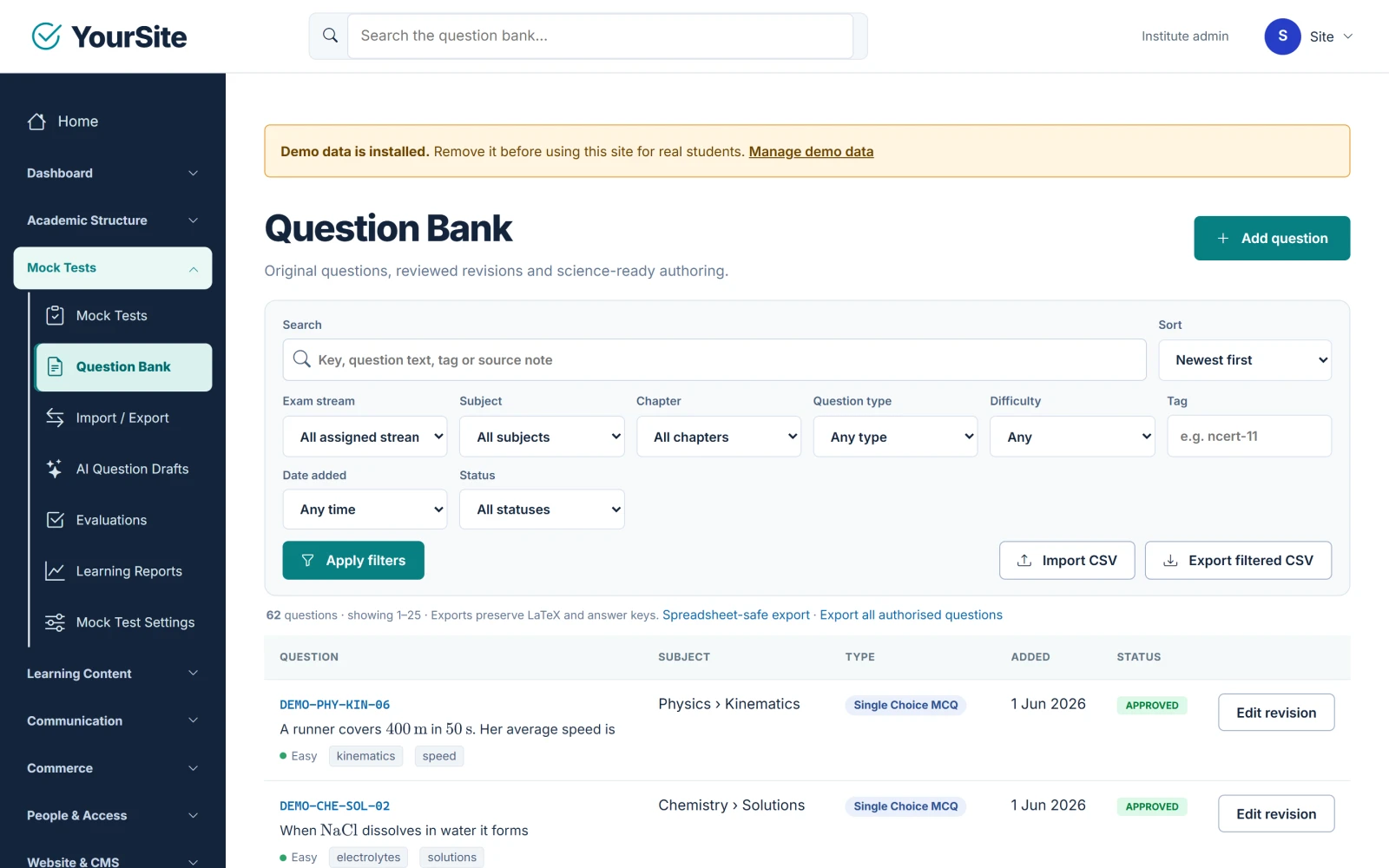
The question bank holds every question your tests use. Questions are mapped to your syllabus tree, saved as revisions, and must be approved before they can be added to a Mock Test.
Open it from the staff menu: Mock Tests → Question Bank (/staff/questions).
Before you start #
- Create at least one Exam Stream and its Syllabus & Subjects tree. Every question is mapped to a stream and to one or more syllabus categories. See Users, Roles, Batches & Access.
- Owners and administrators can write and approve questions. Teachers can write, import and export questions, but cannot approve them with the default permissions.
Question types #
| Type | Answer |
|---|---|
| Single Choice MCQ | Four answer choices (A–D), exactly one correct |
| Multiple Correct MCQ | Four answer choices (A–D), one or more correct; scored only when the student selects exactly the correct set |
| Numerical answer | An expected value with an allowed tolerance |
| Written answer | Free text, marked by staff using a marking guide |
| Shared passage | A reading passage that other questions refer to; it is not itself a scored question |
Add a question #
- Open Question Bank and click Add question. The editor opens as Add a question.
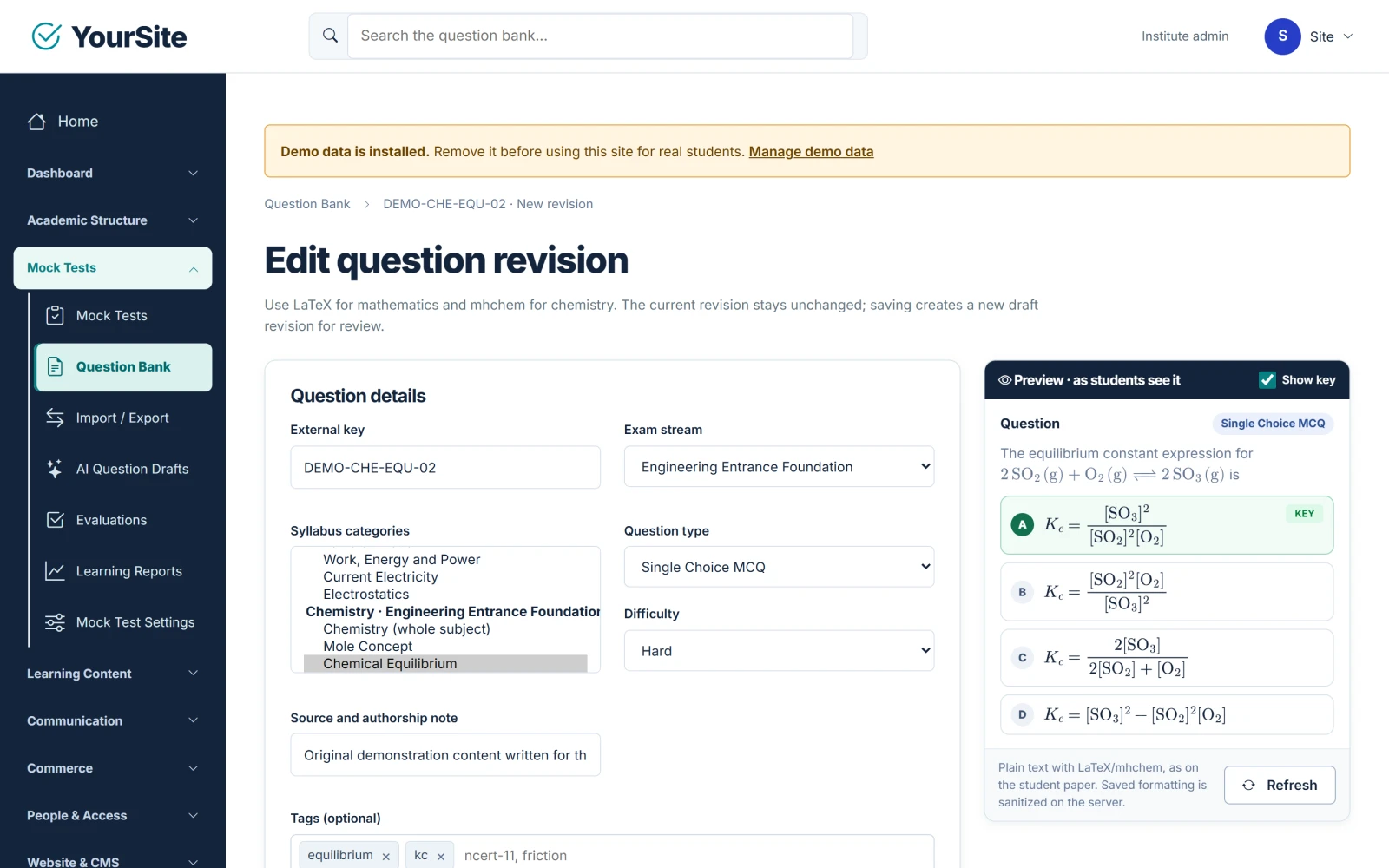
- Under the question details, fill in:
- External key (required) — your own unique reference, using letters, numbers, dots, dashes and underscores (up to 120 characters);
- Exam stream and Syllabus categories (required; you can choose a whole subject or specific chapters);
- Question type and Difficulty (Easy, Medium or Hard);
- Source and authorship note (defaults to “Original authoring”);
- Tags (optional) — comma-separated.
- Enter the Question or passage text. Use LaTeX for mathematics and mhchem for chemistry, for example
\(F=ma\)or\(\ce{2H2 + O2 -> 2H2O}\). - Optional: click Add question image to attach an image. Enter an Image description (required) for every image.
- For Single Choice and Multiple Correct questions, fill in the four Answer choices and tick Correct answer for the right choice or choices. Each choice needs text, an image, or both.
- For Numerical questions, fill in the Numerical answer rule: Expected answer, Allowed tolerance and Tolerance method (Absolute difference or Relative to expected value).
- For Written questions, fill in the Teacher marking guide → Marking criteria (required).
- Optional: enter an Explanation shown after result release.
- Click Save draft revision.
Expected result: the message “Question saved as a draft revision. It must be reviewed before use in a test.” appears.
Preview as students see it #
The side pane Preview · as students see it shows the question as students will see it, including rendered mathematics and chemistry, and redraws it as you type. Tick Show key to see the correct answer; Refresh redraws the preview at any time.
Image limits #
| Image | Limit |
|---|---|
| Question images | PNG, JPEG or WebP; up to 2 MB each; up to 10 per question; description required |
| Answer-choice images | One image per choice; description required |
| Display width | 80–640 pixels |
Revisions and approval #
- Every save creates a new revision and returns the question to draft.
- A draft question cannot be added to a Mock Test. Staff with the review permission (owners and administrators by default) click Approve in the question list; the message “Question approved for future test revisions.” confirms it.
- A question linked to a shared passage can be approved only after the passage is approved.
- Authors can edit only their own questions unless they have the review permission.
- Editing a question never changes a published Mock Test edition. Published editions keep the question revisions they were published with; the next edition you publish uses the newest approved revision.
Search and filter #
The question list shows 25 questions per page. Use:
- the search box (key, question text, tag or source note) and Sort (Newest first or Oldest first);
- the filters Exam stream, Subject, Chapter, Question type, Difficulty, Tag, Date added and Status;
- Apply filters and Clear all.
Import questions from CSV #
Open Mock Tests → Import / Export (/staff/import).
- Click Download template to get
question-template-v1.csvand fill it in. The file must be UTF-8, with up to 5,000 rows and at most 20 MB. - Choose what happens If an external key already exists: Flag it for correction or Create a new draft revision.
- Upload the file with Upload and validate.
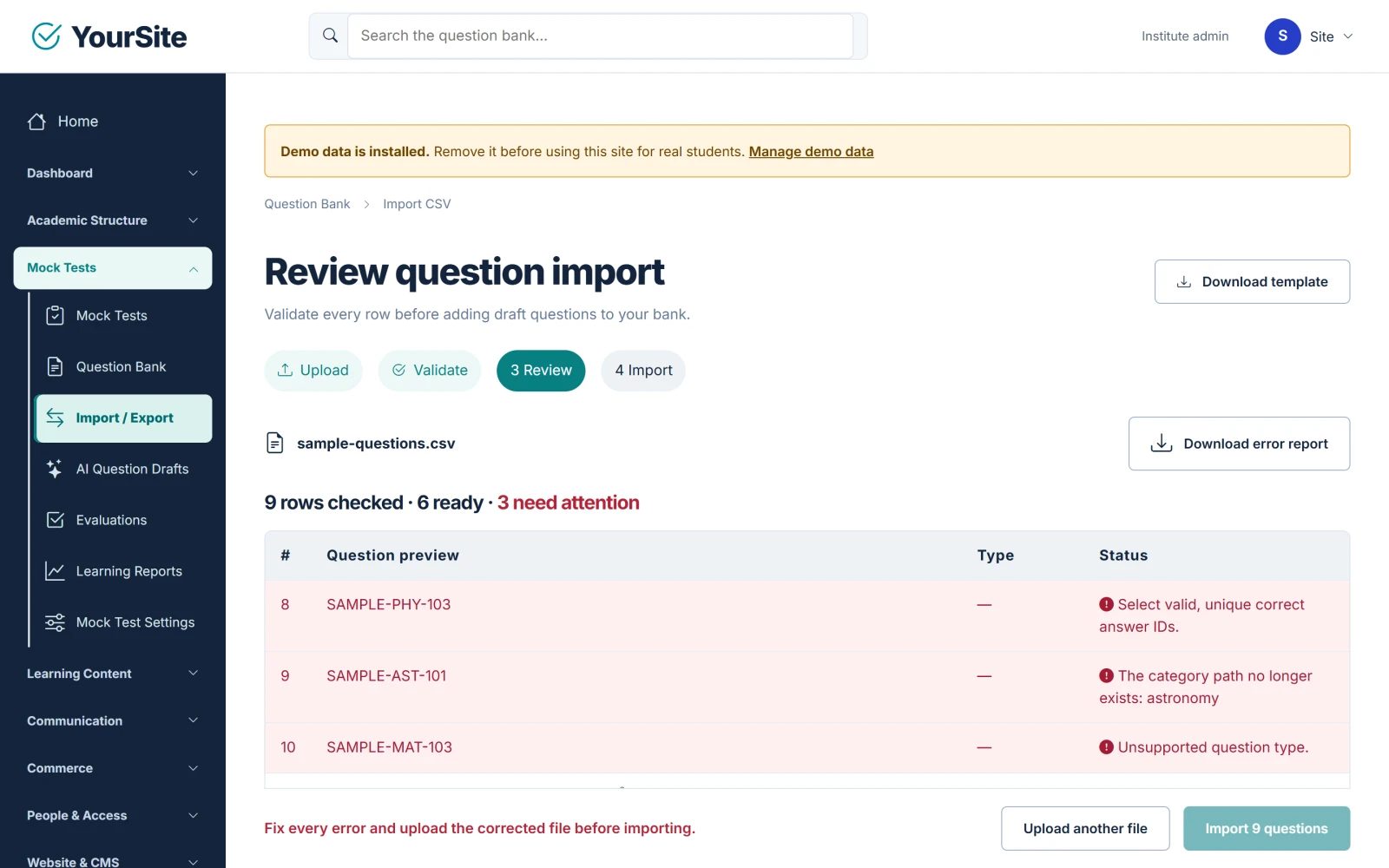
- Review the result: the summary shows how many rows were checked, are ready and need attention. Rows with errors are listed first. Click Download error report to get
import-errors.csv. - Fix the errors in your file and upload it again until every row is valid.
- Click Import N questions.
Expected result: “Import committed. All imported questions remain drafts for review.” Approve the imported questions before using them in tests.
Note: The import is all-or-nothing. Import stays disabled until every row is valid, and a key that appears twice in the same file is rejected.
Export questions #
From the Question Bank list, choose Export filtered CSV, Spreadsheet-safe export or Export all authorised questions. On the export page, click Create private export and then Download CSV. An export holds up to 5,000 questions and its download expires after 24 hours.
AI question drafts (optional) #
If an AI provider is configured, owners and administrators can generate question drafts under Mock Tests → AI Question Drafts. Drafts are reviewed by staff before anything is saved to the question bank. See AI Provider & AI-Generated MCQ Practice.
Related documents #
- Creating & Managing Mock Tests
- Student Test Experience, Attempts & Results
- Users, Roles, Batches & Access
Watch the Video Tutorial #
Academy & Exam OS Video Tutorial 04: Building the Question Bank shows this topic step by step (6:04).


