

Website & CMS
3 min read
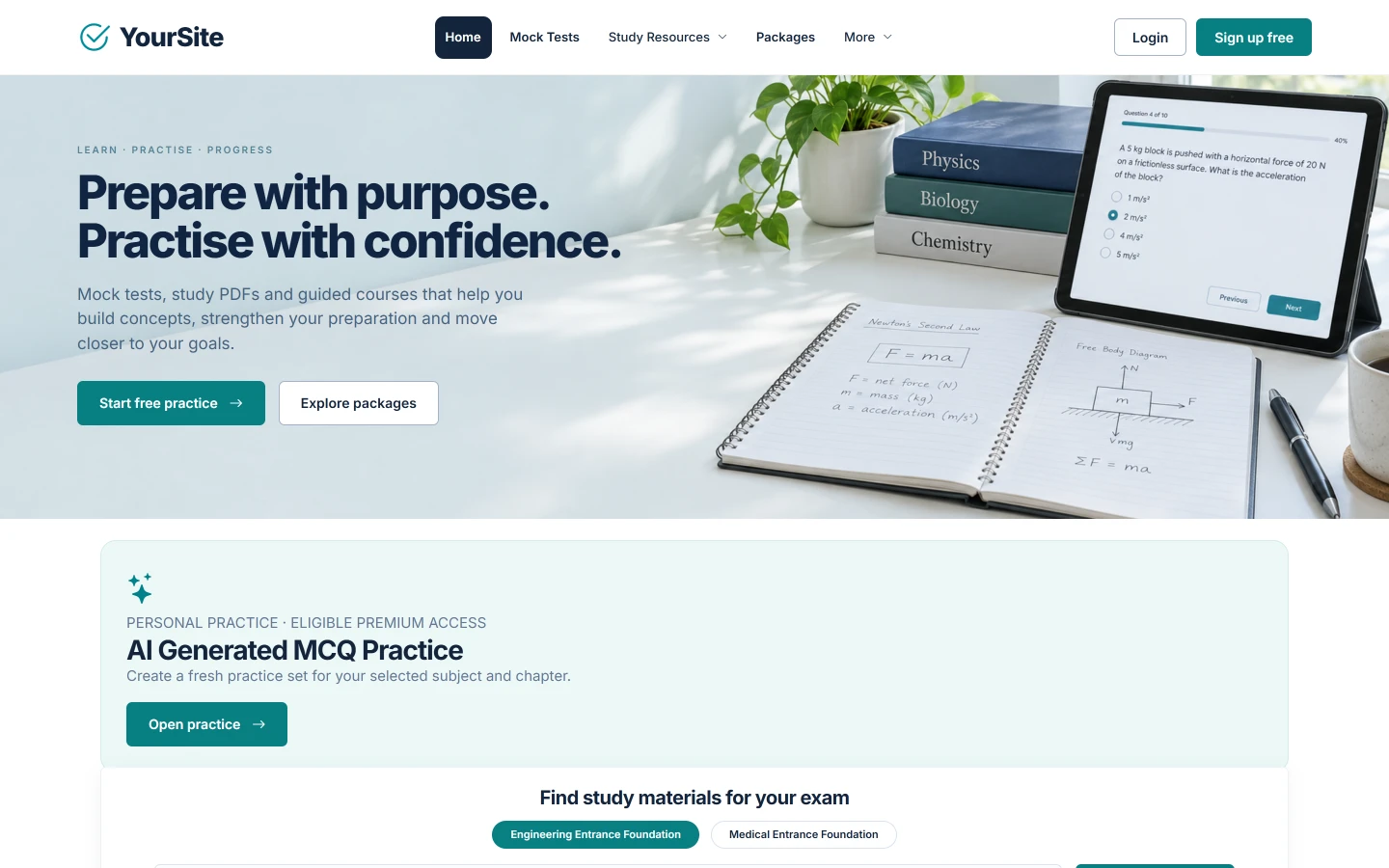
Your institute’s public website is part of Academy & Exam OS and is managed entirely from the staff area. Nothing needs to be edited in the application files.
Who can do this: owners and administrators.
Draft, published and SEO #
All website content has a draft / published status and SEO metadata. Only published items appear on the site.
Homepage and content #
| Menu (Website & CMS) | What it controls |
|---|---|
| Homepage Slides | The homepage slider (controllable by visitors; no inaccessible auto-play) |
| Homepage Sections | The homepage sections and their order |
| Featured Content | Featured tests, materials, videos and courses |
| Website & Blog | Blog posts, shown at /blog |
| Pages | Free pages, shown at /page/{slug} |
| FAQ | The FAQ block |
| Navigation | Header and footer menus |
| About Us | The public About page (/about) and its image |
Branding #
Branding & Website Settings holds the site icon; its Edit website settings list holds the site name, logo, tagline, colours, footer text and the Powered by OsDot™ footer setting. See White-Label & Branding.
Business profile and contact page #
- Business Profile (
/staff/website/business): the company or institute name, legal name, address and contact details shown in the footer and on the contact page. - Contact Page (
/staff/website/contact): the contact form, the map embed and the visible contact information. - Contact Messages: messages sent through the contact form arrive here, in a private inbox. They are never published.
Legal pages #
Legal Pages (/staff/legal) manages Terms & Conditions, Privacy Policy, Disclaimer, Refund / Cancellation Policy, Cookie Policy, Acceptable Use Policy, Contact / Legal Notice and custom legal pages, with versions and consent tracking.
Create draft starter pages adds private, empty drafts for the standard pages, set up for the footer. You write the wording.
Important: The starter pages contain no legal text, and Academy & Exam OS does not provide legal advice. Have your policies reviewed — ideally with a legal adviser — before you publish them.
Mobile-app showcase #
The homepage includes a showcase for your institute’s mobile app.
- Open System / Integrations → Mobile / App Store Settings.
- Enter the Google Play and App Store listing addresses of your own published app. Leave an address empty while that app is not published yet.
- Set App availability (Coming soon or Published). It is one setting for the app as a whole.
- Save.
Expected result: the homepage shows a Google Play or App Store button for each platform whose listing address you entered; a platform without an address shows Coming soon. See Building the Android App and iOS Project & Xcode Requirements.
Catalogue pages #
Your tests and study material appear in the public catalogue at /tests, /materials, /videos, /courses and /packages. They are managed under Mock Tests, Learning Content and Commerce. See Courses, Lessons, Videos & PDFs and Payments & Orders.
About this software #
The About Academy & Exam OS link in the staff menu (/staff/about-software) shows the product name, version, publisher and the facts of this installation. It is read-only.
Related documents #
Watch the Video Tutorial #
Academy & Exam OS Video Tutorial 10: Website, CMS, Payments & Orders shows this topic step by step (7:29).


