

Courses, Lessons, Videos & PDFs
5 min read
Academy & Exam OS lets you publish study material next to your tests: PDF materials, video lessons and structured courses that combine them. Students find them on your website under /materials, /videos and /courses, and in the mobile app.
Who can do this: owners and administrators can create and publish content. Teachers can create content and edit their own items, but cannot publish with the default permissions.
Content types #
| Type | Menu | What it is |
|---|---|---|
| PDF Material | Learning Content → PDF Materials | A private PDF (up to 20 MB) shown in an in-page reader |
| Video Lesson | Learning Content → Video Lessons | A self-hosted MP4 (up to 250 MB) or a YouTube video |
| Course | Learning Content → Courses | An ordered set of published PDF and video lessons, with progress and an optional completion certificate |
Common fields #
All three types are created with Create learning content and share these fields:
- Resource type — PDF Material, Video Lesson, Structured Course or Mock Test (locked after creation);
- Exam stream, Title, URL slug (leave empty to use the title) and Public summary;
- Syllabus categories (required; they must belong to the selected stream);
- Student access — Free to signed-in students or Premium — requires a matching package or grant;
- Audience — All eligible students, or Selected batches only with the Selected batches;
- Publication status — Draft, Ready for review, Published or Archived.
Students only ever see published items. Free items need a signed-in, verified account; premium items also need access through a package or an access grant. See Payments & Orders and Users, Roles, Batches & Access.
Add a PDF material #
- Open Learning Content → PDF Materials and click Create learning content.
- Set Resource type to PDF Material and fill in the common fields.
- Upload the file with Upload PDF or MP4, or choose a file you uploaded earlier under Or use an existing upload. The file must be a real PDF of at most 20 MB.
- Optional: tick Allow PDF downloads.
- Set Publication status to Published when it is ready, and click Save learning content.
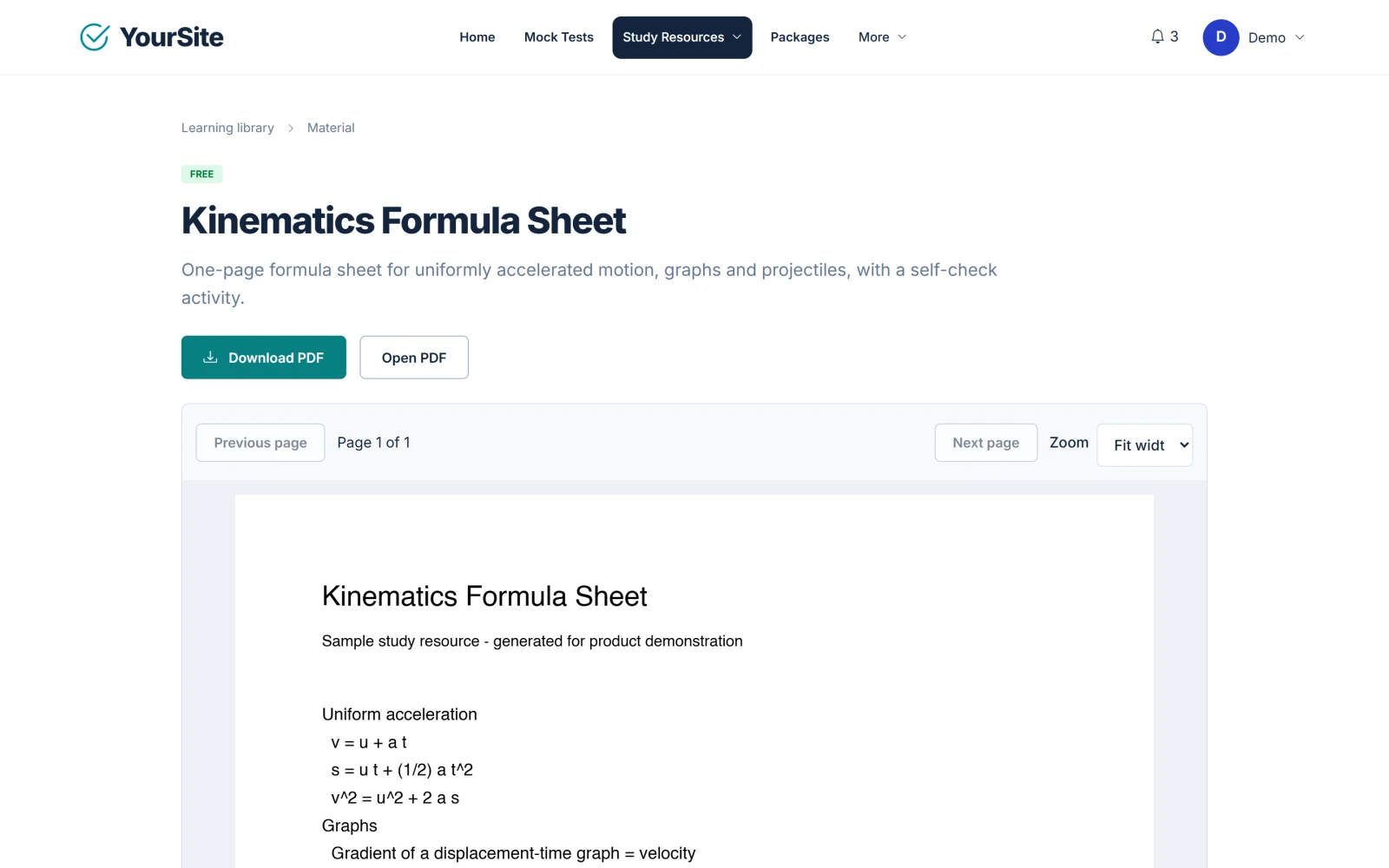
What students see: the PDF opens in an in-page reader with Previous page / Next page, Zoom (Fit width, 125% or 150%) and a Read page as text section. The reader reopens at the last page the student viewed. Download PDF appears only when downloads are allowed; otherwise downloads are also refused by the server.
Add a video lesson #
- Open Learning Content → Video Lessons and click Create learning content.
- Set Resource type to Video Lesson and fill in the common fields.
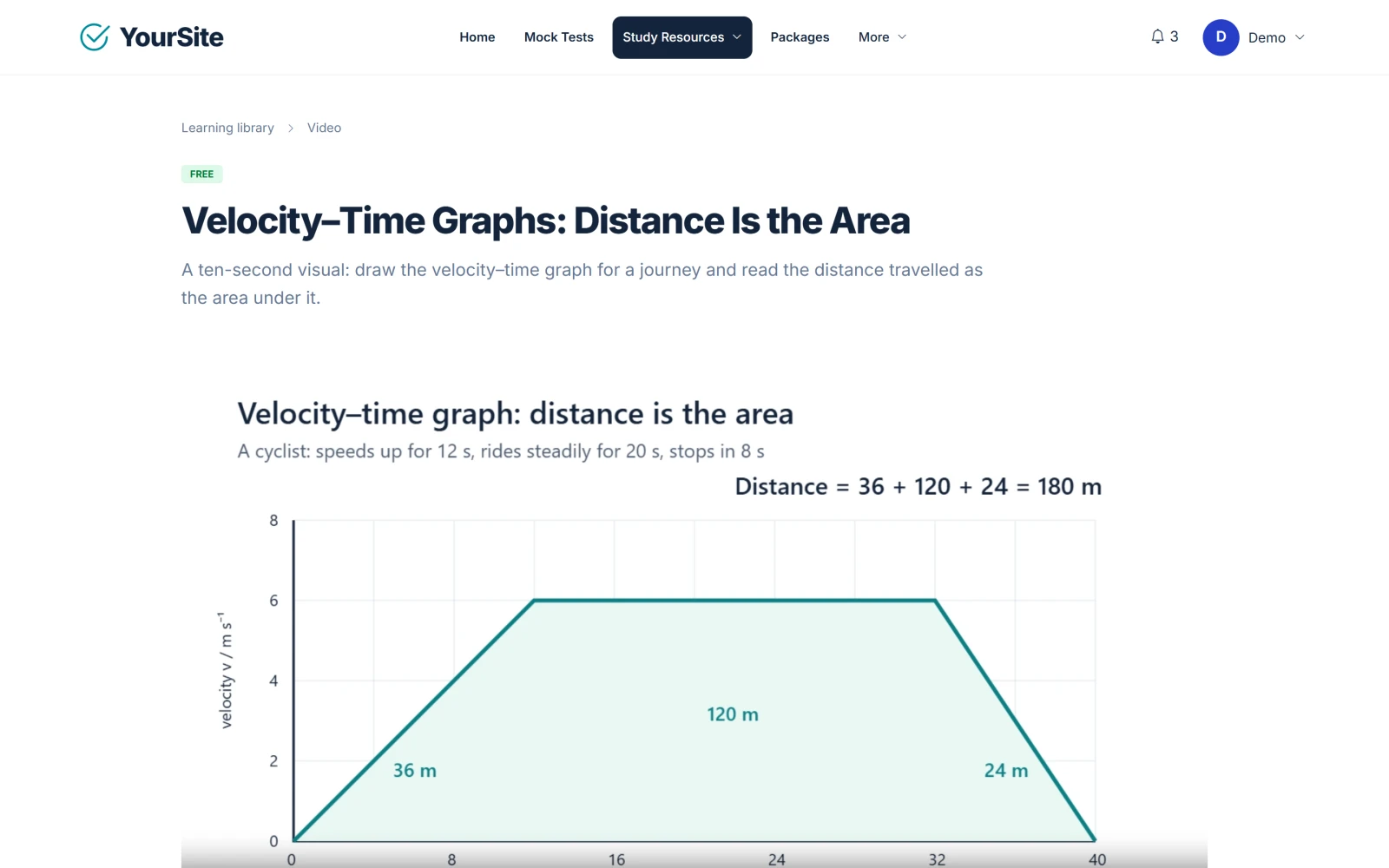
- Choose the Video source:
- YouTube link — paste a YouTube watch or share address (
youtube.com/watch…oryoutu.be/…). It plays in YouTube’s privacy-enhanced embed. - Self-hosted MP4 — upload an MP4 file with H.264 video and AAC audio, up to 250 MB.
- YouTube link — paste a YouTube watch or share address (
- Publish and click Save learning content.
Self-hosted videos resume from the position where the student stopped.
Note: Uploading large videos needs matching PHP limits on your hosting (
upload_max_filesize250M andpost_max_size260M for the full range). See System & Hosting Requirements.
Build a course #
A course is an ordered list of published PDF and video lessons from the same stream.
- Publish the PDF materials and video lessons the course will use.
- Open Learning Content → Courses and click Create learning content with Resource type set to Structured Course.
- Fill in the common fields and the Course section title.
- Under Included PDF and video lessons, add the lessons and put them in order with Move up / Move down. A course needs at least one lesson before it can be published; every lesson in the course is required.
- Optional: choose a Completion certificate (only active certificate templates are listed; the default is No certificate).
- Publish and click Save learning content.
Saving a course creates a new course edition. Students who are already enrolled keep the edition they enrolled in.
What students see: students click Enrol in this course, open each lesson and click Mark complete. The course page shows “X of Y lessons complete”. When every required lesson is complete, the course shows Course completed and, if a certificate is set, View your certificate.
Completion certificates #
Open Learning Content → Certificates (page title Certificate Templates) to create a template with a Name, Heading, Body and Status (Draft, Active or Archived). Only Active templates can be selected for a course.
A certificate is issued automatically when a student completes every required lesson of the course. It shows the student’s name, the course and a certificate ID. Editing a template that has already issued certificates creates a new template, so issued certificates never change.
Media library #
Learning Content → Media Library (/staff/media) stores uploads privately. You can upload a question image (up to 2 MB), a PDF material (up to 20 MB) or an MP4 video (up to 250 MB) with Upload to library, and reuse them later. Each staff member sees their own uploads. Files are never served by a direct address; students receive short-lived, access-checked links.
Saved resources #
Students can click Save to My Learning on any resource. Saved items appear under Saved resources on their My Learning page.
Assignments #
Teachers and administrators can set written assignments for a batch under Learning Content → Assignments: choose the Batch, optionally a course edition, and enter a title, instructions, due date and maximum marks (default 100). Set the status to Published to show it to the batch.
Students find assignments on their My Learning page, write their answer under Your response and click Submit assignment. They can resubmit until the deadline. Staff mark submissions under Learning Content → Assignment Reviews with Marks, Feedback and Save evaluation.
Related documents #
Watch the Video Tutorial #
Academy & Exam OS Video Tutorial 07: Courses, Lessons, Videos & PDFs shows this topic step by step (5:24).


