

Student Test Experience, Attempts & Results
2 min read
This guide explains what students experience when they take a Mock Test on your website, and how staff mark attempts and release results.
Finding a test #
Students open Mock Tests on your website (/tests) and filter by All Tests, Free Tests or Premium Tests. When they have an attempt in progress, a Continue your test banner appears.
To take a test, a student must be signed in with a verified e-mail address. A premium test also needs an active access grant; without one, the test page shows Explore matching packages.
Starting an attempt #
The test page shows Before you begin: the timing, Attempts allowed and Attempts used. The student clicks Start Test, or Resume test for an attempt in progress.
The server controls the test deadline. Answers show as saved only after the server confirms them.
During the attempt #
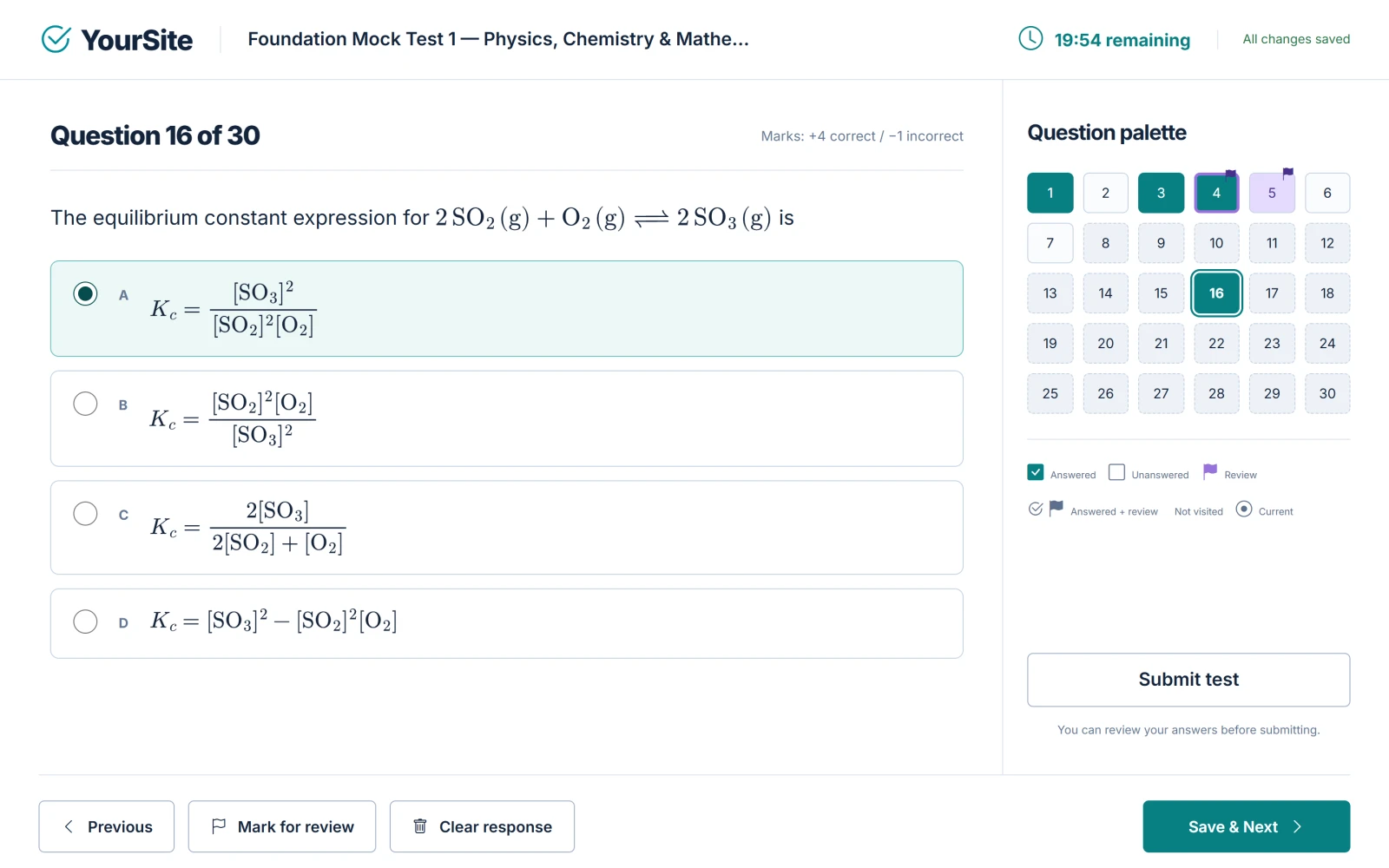
- Navigation: Previous, Mark for review, Clear response and Save & Next (or Save & Review on the last question), plus a question palette.
- Timer: the deadline is calculated on the server. The browser counts down and re-checks with the server regularly, so changing the device clock has no effect.
- Saving status: the page shows All changes saved, Saving changes…, Offline · changes pending or Saving paused.
- Dropped connections: unconfirmed answers are kept on the device and sent again automatically when the connection returns or the page is reloaded. The browser warns before the student leaves with unsaved changes.
- One device at a time: if the student opens the same attempt on another device, that device shows Take control on this device. Only the device in control can save answers.
Submitting #
The student clicks Submit test and confirms in Ready to submit? (or Keep reviewing to go back). Submitting is blocked while changes are still waiting to be saved.
If the deadline passes, the attempt is submitted with the answers the server has already saved. The background worker seals and grades overdue attempts, so the worker must be scheduled — see Cron Jobs & Background Worker.
When results appear #
Each test’s Release results setting decides when students see their result:
| Setting | Result is released |
|---|---|
| Immediately after complete marking | As soon as the attempt is fully marked (at once for tests with no written questions) |
| After the scheduled test closes | After the test’s closing time has passed |
| When authorised staff release them | When a staff member with the publish permission releases it |
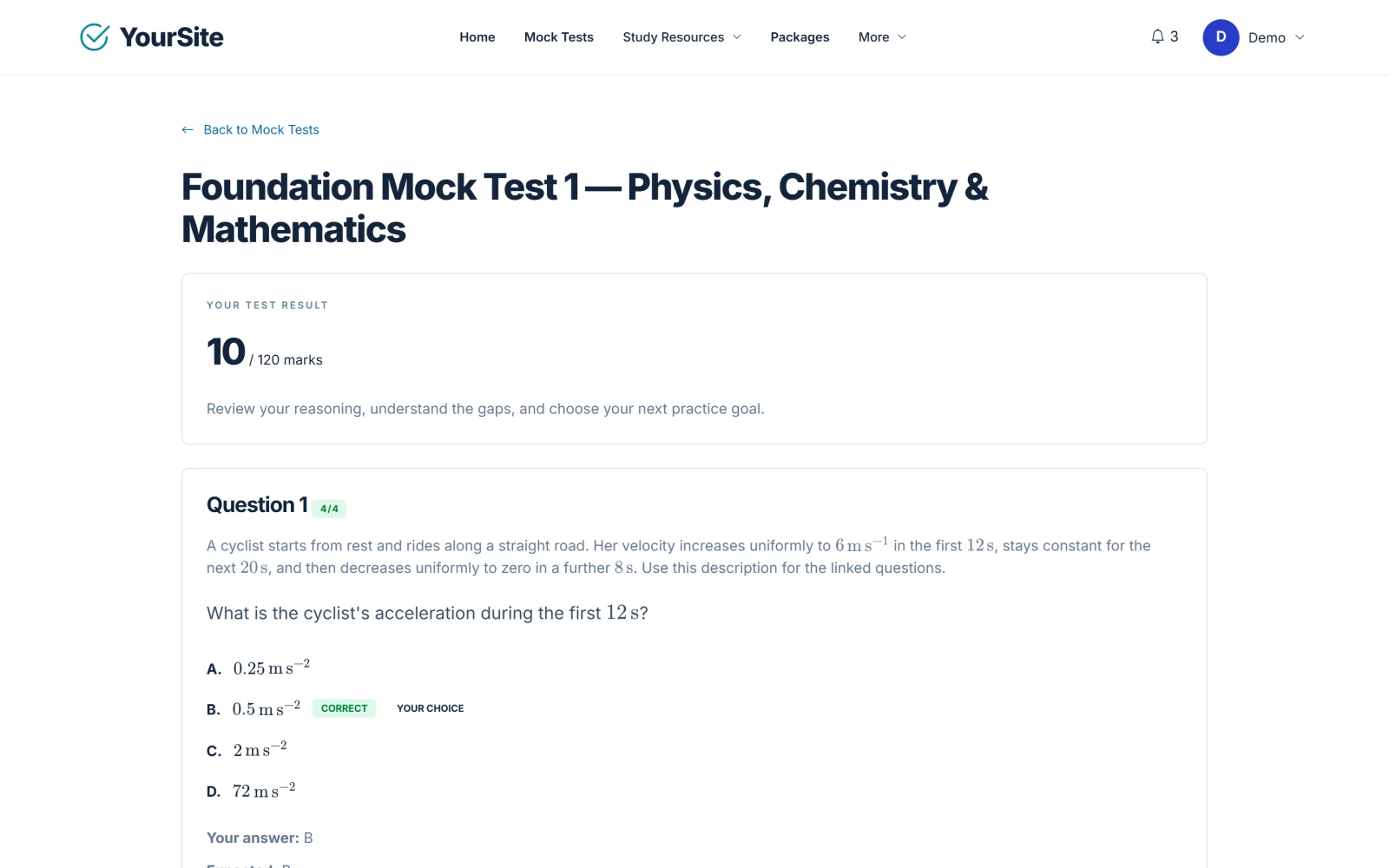
Before release, students see “Your answers are submitted”, or “Your written answers are waiting for teacher review.”
After release, the result page shows the score and each question with the student’s answer, the expected answer, the explanation and any teacher feedback. Papers with more than 10 questions offer Jump to question. Students can reopen results from My Learning → Test history → View result.
Marking written answers (staff) #
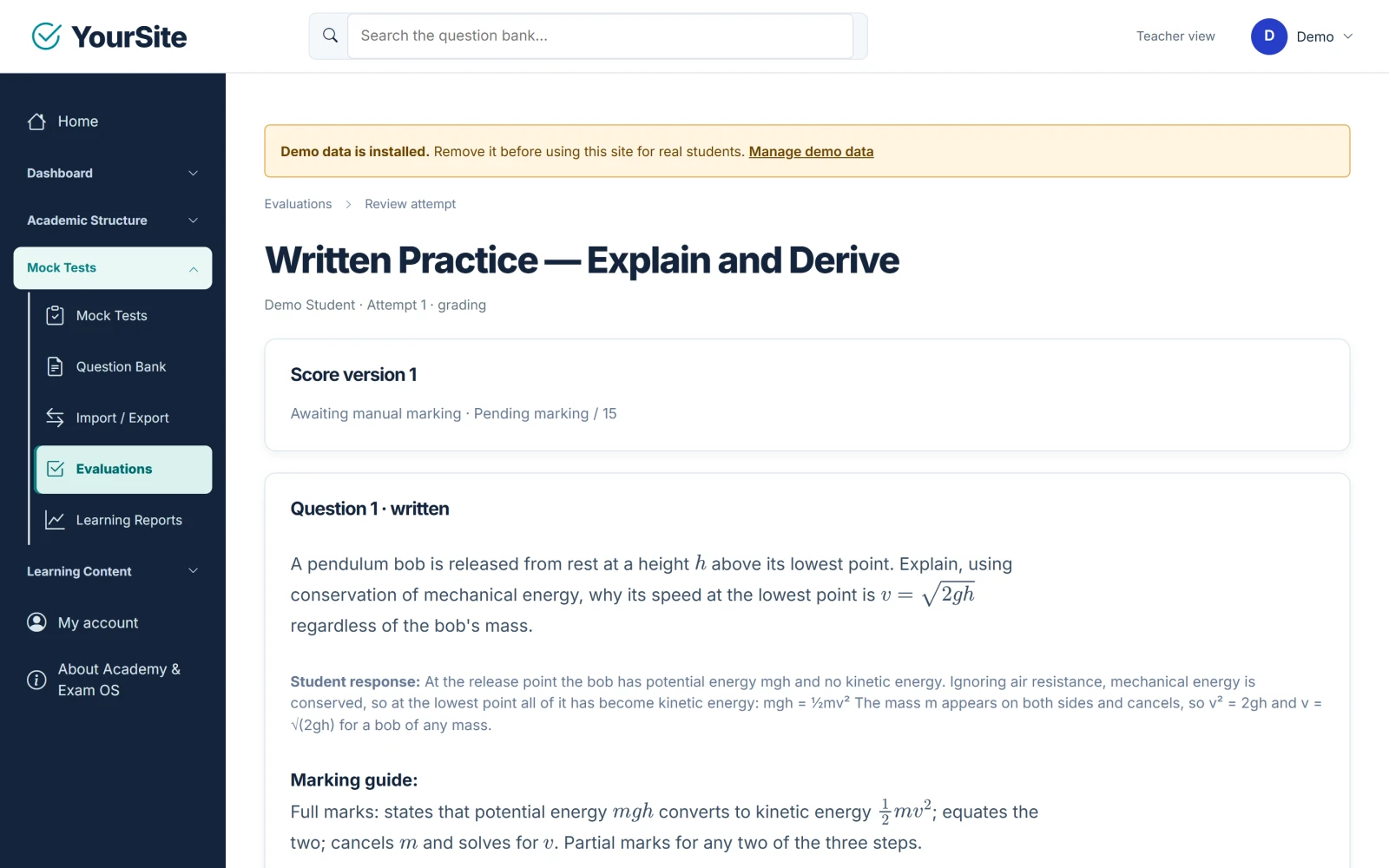
Staff with the marking permission (owners, administrators and teachers by default) open Mock Tests → Evaluations (page title Attempts & Evaluations), which lists the latest 100 attempts.
- Click Review on an attempt.
- For each written answer, read the Marking guide, enter the Marks awarded and optional Student feedback.
- Click Save marking.
- When marking is complete and the test’s release setting requires staff release, a staff member with the publish permission (owners and administrators by default) releases the result with Release result to student. Teachers do not see this action with the default permissions.
Regrading #
To correct the marking of written answers after marking is complete:
- On the attempt’s review page, click Start a new marking version.
- Enter the Reason for regrading written responses (at least 10 characters) and click Create regrade version.
- Mark the written answers again and release the result.
Each regrade creates a new score version, so earlier scores stay on record. While a regrade is in progress, the student’s result shows as not released until the new version is released.
Related documents #
Watch the Video Tutorial #
Academy & Exam OS Video Tutorial 06: Student Attempts, Marking & Results shows this topic step by step (4:30).


