

Communication Hub
1 min read
The Communication Hub sends announcements from staff to students: always to the in-app inbox, and by e-mail to recipients who opted in. Delivery is done by the background worker, never while a page is loading.
There is no push notification, SMS or WhatsApp messaging in version 1.0.2. E-mail uses your own SMTP server.
Before you start #
- The hub ships switched off. An owner or administrator must enable it.
- For e-mail delivery you need working SMTP (E-mail & SMTP Settings) and the scheduled communication worker (Cron Jobs & Background Worker).
- An announcement goes to All eligible students (every active student with a verified e-mail address) or to Selected batches (the active students of those batches). To use batches, set them up first (Users, Roles, Batches & Access).
Switch the hub on #
- Open Communication → Communication Hub (
/staff/communication). - Turn on the hub switch.
- Optional: turn on the e-mail channel switch as well.
Send an announcement #
- In Communication Hub, create an announcement: title, message and the Audience (all eligible students, or selected batches).
- Use Review audience to check who will receive it.
- Choose Queue now, or Schedule once and use Resolve scheduled time to confirm the time.
- Click Confirm & queue.
Expected result: the announcement is queued, and the communication worker delivers it within its next runs. Every delivery is recorded under Delivery history with its channel, its outcome (for example Accepted, Suppressed or Failed) and a reason.
What recipients see #
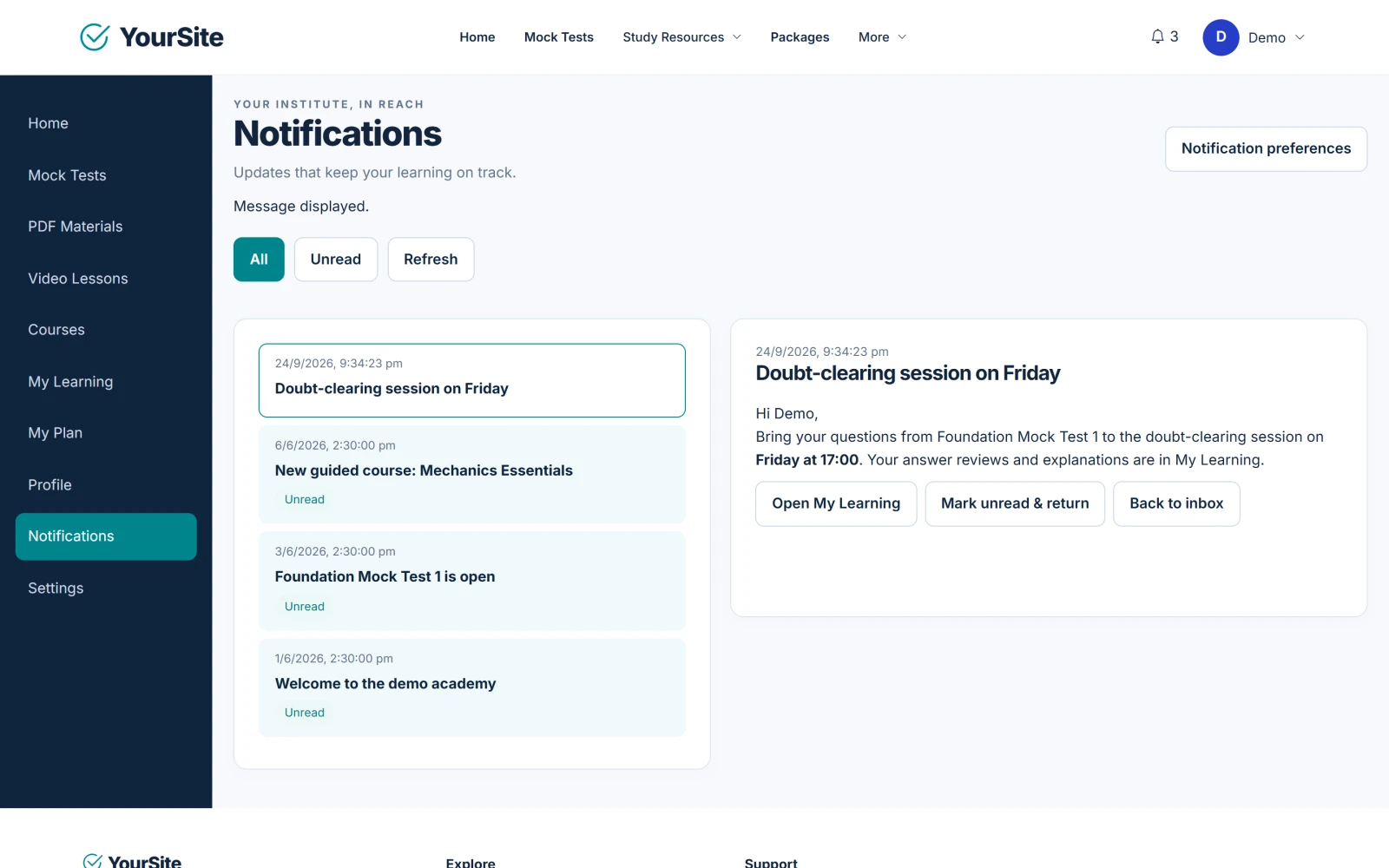
Recipients see announcements in their in-app inbox at /notifications (with a badge in the header) and in the mobile app’s inbox. If the e-mail channel is on and they opted in, they also receive an e-mail. Students manage their e-mail opt-in in their own notification preferences.
Check deliveries #
- Delivery history in Communication Hub is the record of what was delivered. Accepted by a transport does not prove that an e-mail reached or was read in a mailbox, and a processed count is not the same as an accepted e-mail count.
- Every queued announcement and every in-app or e-mail delivery is also recorded under System / Integrations → Audit / Logs.
- A queue that never drains means the communication worker is not running.
Notices created before the hub #
Notices created under Learning Content → Notices before the hub was switched on remain readable. Once the hub manages a notice, its editor opens in the hub instead.
Related documents #
Watch the Video Tutorial #
Academy & Exam OS Video Tutorial 09: Communication Hub shows this topic step by step (4:18).


