What your customers do: booking and estimates
This chapter describes your website and the app as your customers see them, so that you can answer their questions. The words on the pages follow your settings (your areas, your services, your deadlines).
Video tutorials #
Watch Online booking and the service area on YouTube
Booking a job on your website #
Book (the /book page) leads through seven steps: Service, Worker, Time, Your details, Code, Summary, Done.
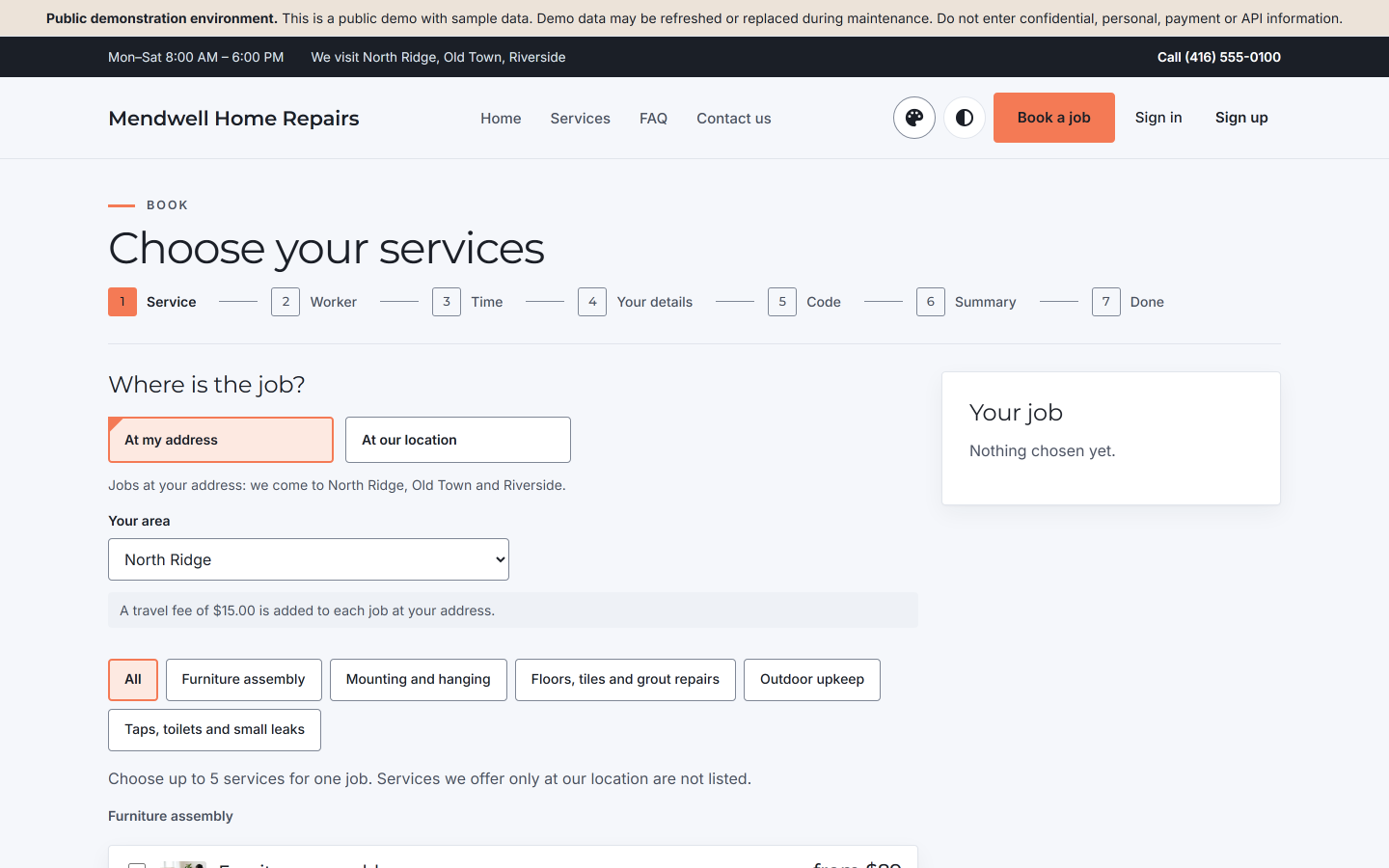
- Service. The customer chooses Where is the job? — At my address or At our location (only while you take jobs at your own place) — and, for an address, Your area. The page says which areas you come to and the travel fee added to each job at an address. They choose up to five services for one job, with each service's option where it has one. A service you price only on request offers Request an estimate instead.
- Worker: a worker, or whoever is available.
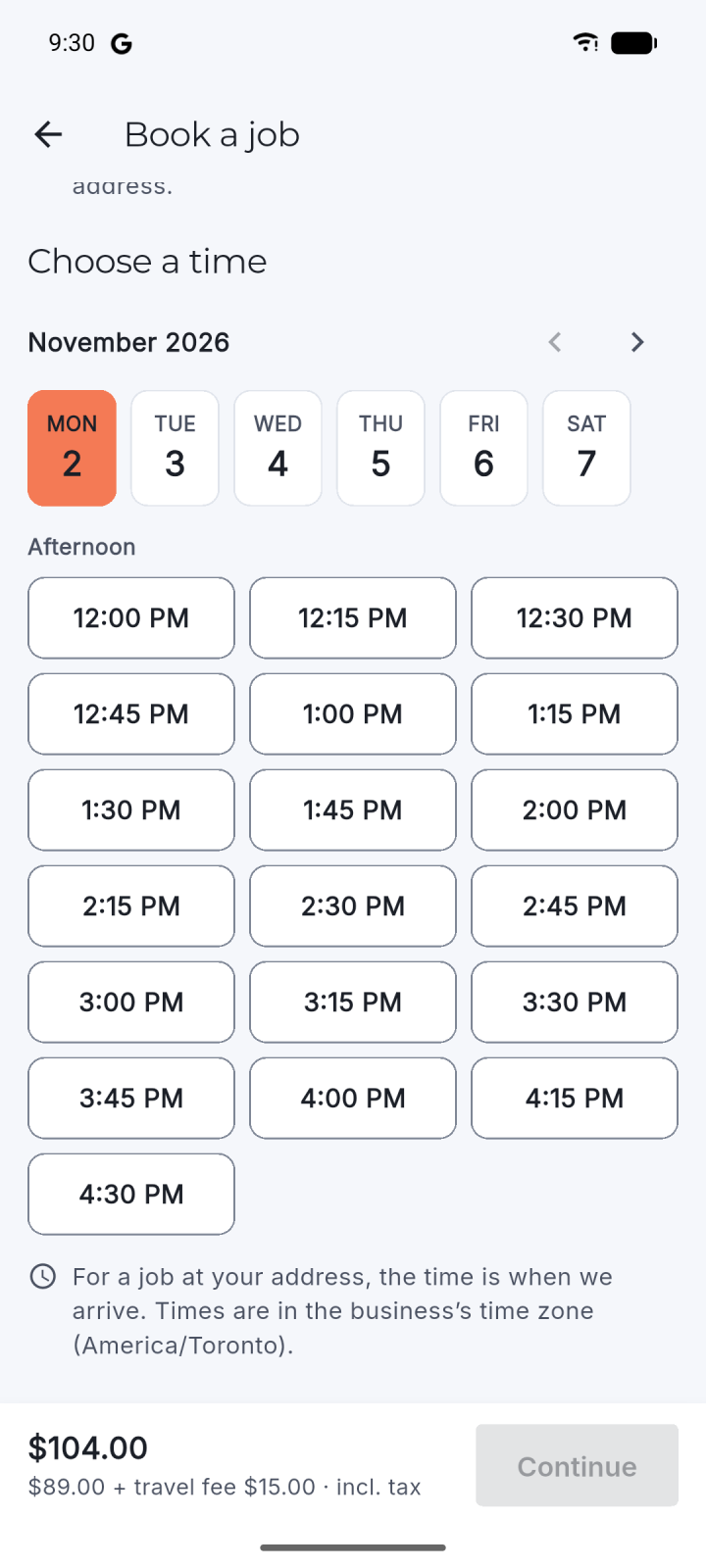
- Time: the free times that fit your hours, the worker's own hours, the travel time between jobs and your minimum notice.
- Your details: name, phone and, for a job at an address, the address. The marketing box is separate and unticked.
- Code: a one-time code by e-mail confirms the customer's address.
- Summary: the job, its price and how to pay.
- Done: the job's reference, also sent by e-mail.
A customer who has no account can still find their booking later with Find my booking (below); one who signs in sees it under My bookings.
Find my booking #
Find my booking (/book/find, linked from the footer) asks for the Reference from the confirmation and the Phone number given when booking, with the country code. It shows the job's date, time, services and status — never the address or the contact details — and gives the same answer for any wrong pair.
Requesting an estimate #
Request an estimate (/estimate): the Type of job and What needs doing?; up to six Pictures of the work (PNG, JPEG or WebP; only your team sees them) — a guest is offered Sign in with an e-mailed code to add pictures first; When suits you (up to three days, each with a time of day); Where the work is (At my address, with the address and area, or I will bring it to you); and Your details (name, the e-mail address the estimate is sent to, an optional phone). Then Send my request. Nothing is booked or charged before the customer approves an estimate.
When you send an estimate, the customer receives a link to that version. They approve or decline that specific version online; a newer version replaces the older one, and added work you send later needs their approval before it is done.
The customer's account #
A customer signs in on your website with an e-mailed code or a password (Sign in, Create an account). Their pages:
| Page | What it holds |
|---|---|
| My bookings | Upcoming and Past jobs; each job's page shows its services, the travel fee, the worker, what was paid, the balance due, its invoice and, for a job at an address, where. Customers reschedule or cancel a booking themselves, inside your deadline (by default until 24 hours before the start; at most two moves per job). After the deadline the page says "This job can no longer be changed online. To change it, call us."; Cancel this job stays, and the page says what is refunded. |
| My estimates | Their estimate requests and estimates, and Request an estimate |
| My invoices | Each invoice with its state and the balance due |
| My orders | Their shop orders (Go to the shop) |
| My reviews | Their reviews. After a completed job or a delivered order they get an e-mail with a link to write one |
| My profile | Name, time zone, phone and picture; the phone and picture are private |
| Privacy and my data | Download my data (their details, jobs, orders and the messages sent, as one file); which messages they receive — booking confirmations, changes and sign-in codes always come, reminders and review requests can be stopped; news and offers, which they agree to or withdraw here |
| Delete your account | What is deleted and what is kept (issued invoices and payment records are kept as accounting records), the date by which it is done, and Delete my account |
Contact page #
Contact us (/contact) sends you a message with the visitor's name, e-mail address, an optional phone number and a subject. Messages wait under Website → Enquiries.
The app for customers #
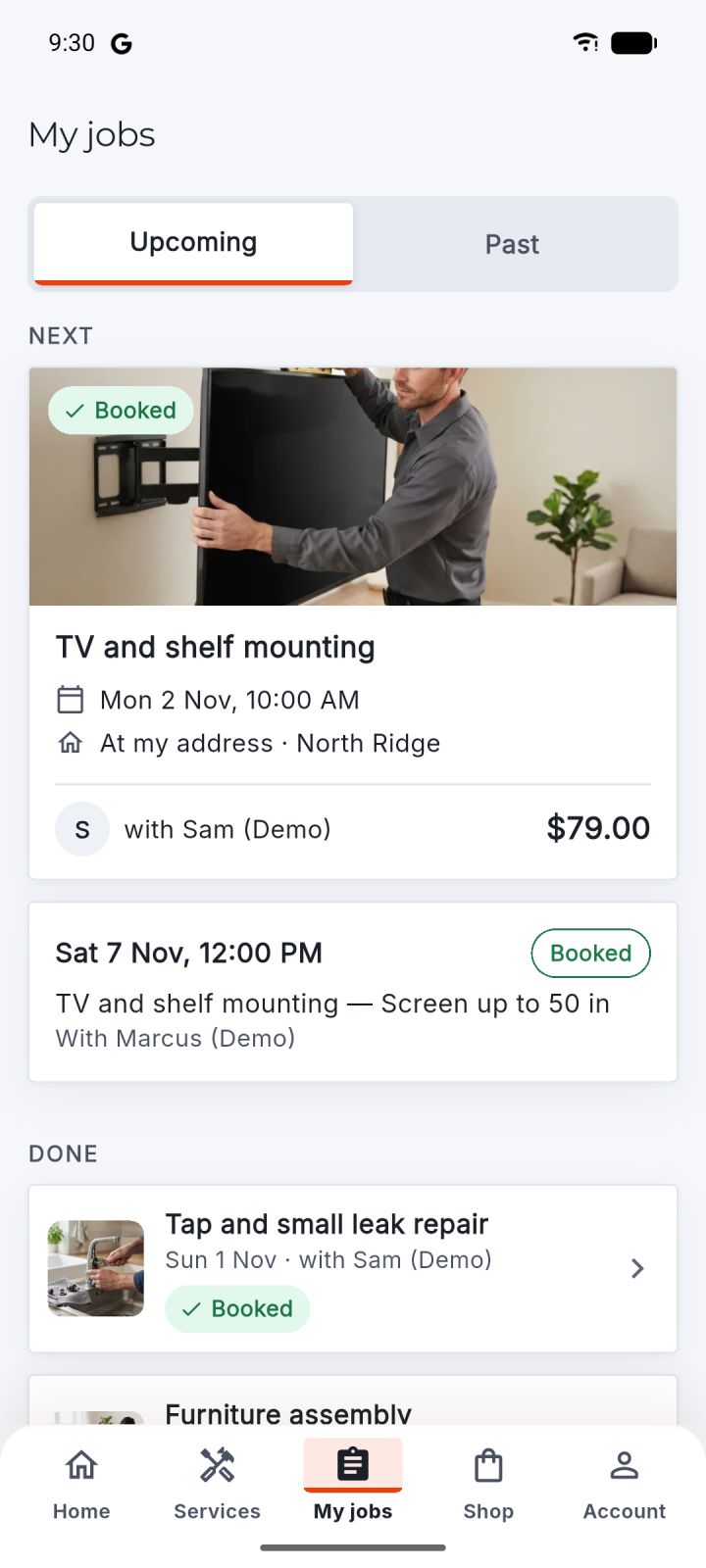
Customers use the same app as your workers. As a customer it offers Home, Services, My jobs, Shop and Account: the services and prices, booking a job at their address or at your place (Where is the job?), their upcoming jobs and their invoices, the shop and their account. "Book a job" follows the same rules as the website. While you do not take bookings online (Work → Online booking), the app's home leaves out Book a job and its book buttons, and a customer who starts a booking from a service sees Online booking is closed with a button to call you (when your business has a phone number). On the website, every step of a new booking then says Online booking is closed, with your phone number and a button to call it; booked jobs keep every link — their pages, changes and cancelling, Add to calendar and a paid deposit's page.