
How to run your day in Handyman Booking OS
Everything here happens in the administration area (/admin), on a computer or at phone width. Times are shown in your business location's time zone.
Video tutorials #
Watch Jobs and the workers' app on YouTube
Also: Estimates
Also: Invoices and payments
The calendar #
Work → Calendar shows a day (or Week) with one column per worker, their working hours, each job and the travel time before and after a job at an address. Previous, Today, Next and Go to date move through the days. The calendar never shows a job's address: the address is shown to the assigned worker and the owner only, on the job's own page.
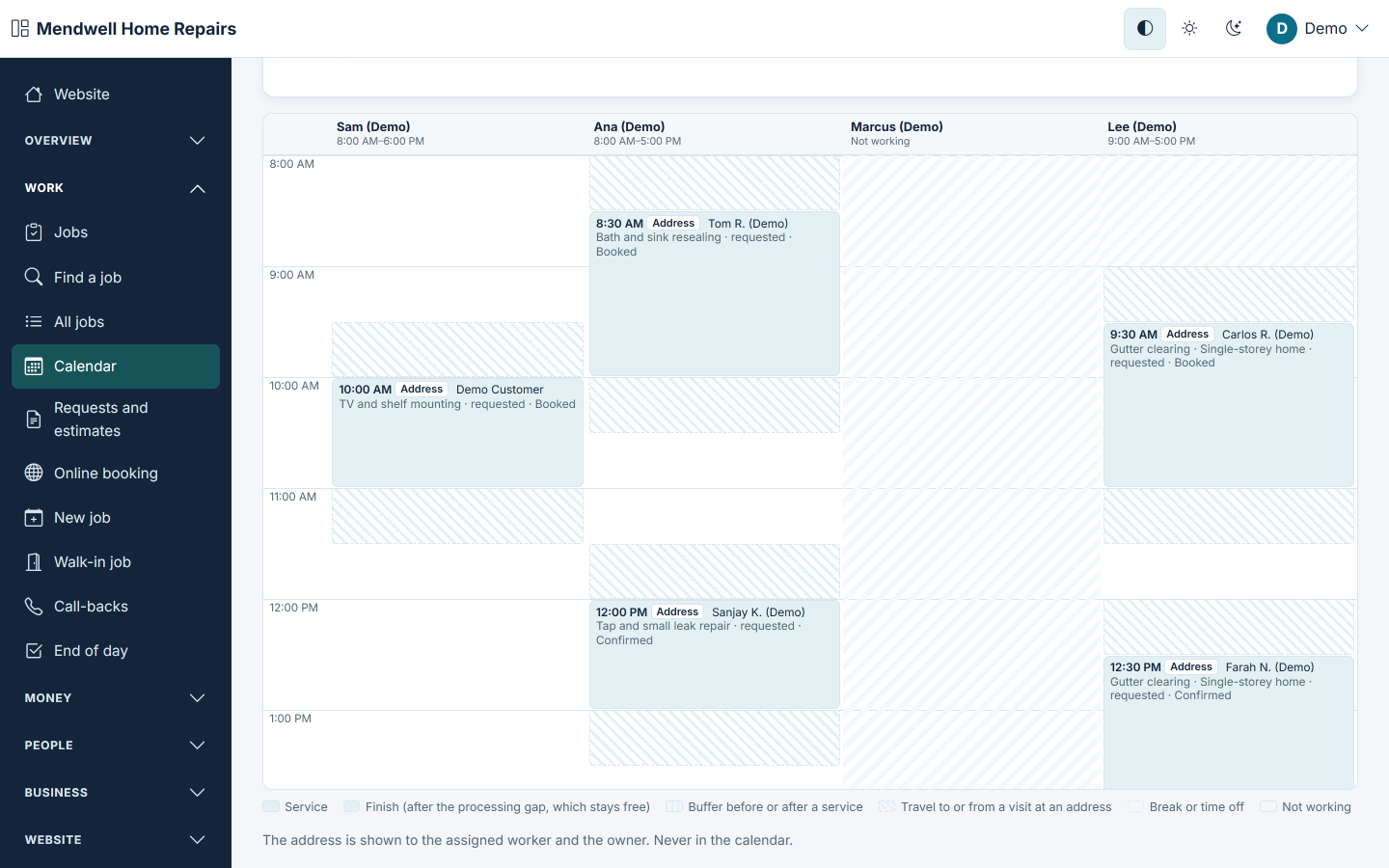
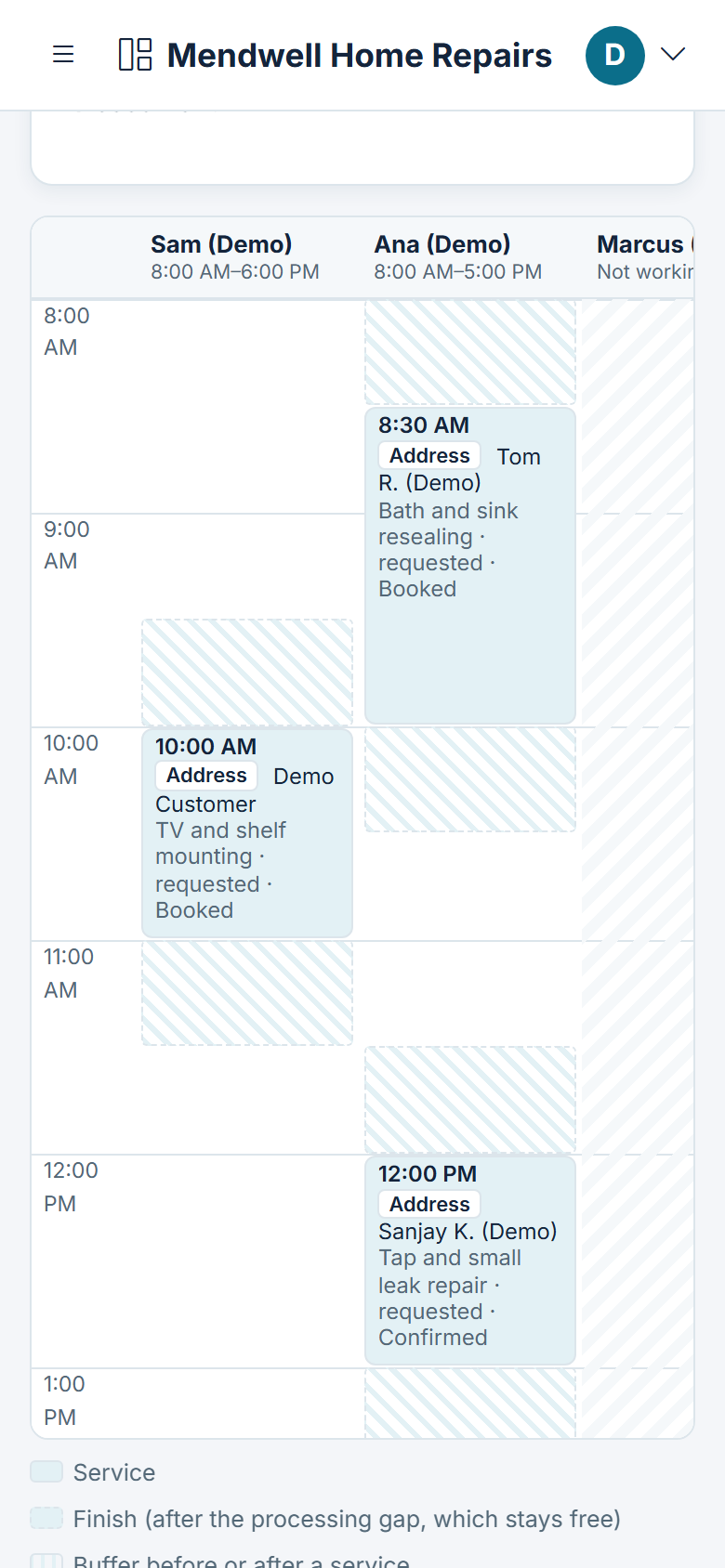
To move a job, drag it to another time or worker: its Move form opens filled in, to check and press Move. Or open the job and use Move. The booking engine refuses a time that would overlap the worker's other jobs or their travel time.
Taking a job at the desk or by phone #
Work → New job (or New job on the calendar):
- When: the date and time.
- Where: At our place or At the customer's address. For an address, choose the Area and enter the Address, the Flat, floor or unit, Access notes (gate code, parking, pets) and the contact on site. The address is seen by the assigned worker and the owner only. A job at an address has one worker: the first service's.
- Services: a service and its Worker (or Any available), then up to two more with Then (optional).
- Customer: Name, Mobile number (in the international form, starting with + and the country code) and E-mail. Without a mobile number or an e-mail address the customer gets no confirmation and no reminders.
- Booked by: At the desk or By phone, and an optional note from the customer. Press Book.
Work → Walk-in job starts a job now, with no customer record needed: a service, a worker, an optional name and mobile number, then Start now.
Finding a job #
- Work → Find a job: search by reference, name, phone or e-mail, past and coming.
- Work → All jobs: the jobs by start, 20 to a page, filtered by Status, Worker, Area and the days From and To.
- Work → Call-backs: today's and tomorrow's jobs not yet confirmed, each with its customer's number; Confirmed by phone records your call.
- Work → End of day: the day's jobs and their state; a job can be marked once it has started.
Your workers' jobs #
Work → Jobs lists the jobs to come and in progress: whether their worker has seen them, their proof pictures and their completion. Needs attention shows the ones to look at.
Each worker gets every assignment by e-mail and in the app, and answers with Seen or tells you at once that they can't do the job. Workers mark arrival, start and completion from the app. While System → Website settings asks for proof (one picture by default) or for the customer's completion code, a job is completed through its work order, with those proofs; with the proof pictures at 0 and the code off, the plain completed mark completes it.
Requests and estimates #
Work → Requests and estimates holds the requests to price, the estimates waiting for the customer's answer and the ones approved, declined or booked, filtered by status. Take a request records one taken by phone. Customers send theirs from your website's Request an estimate page, with photos and preferred times.
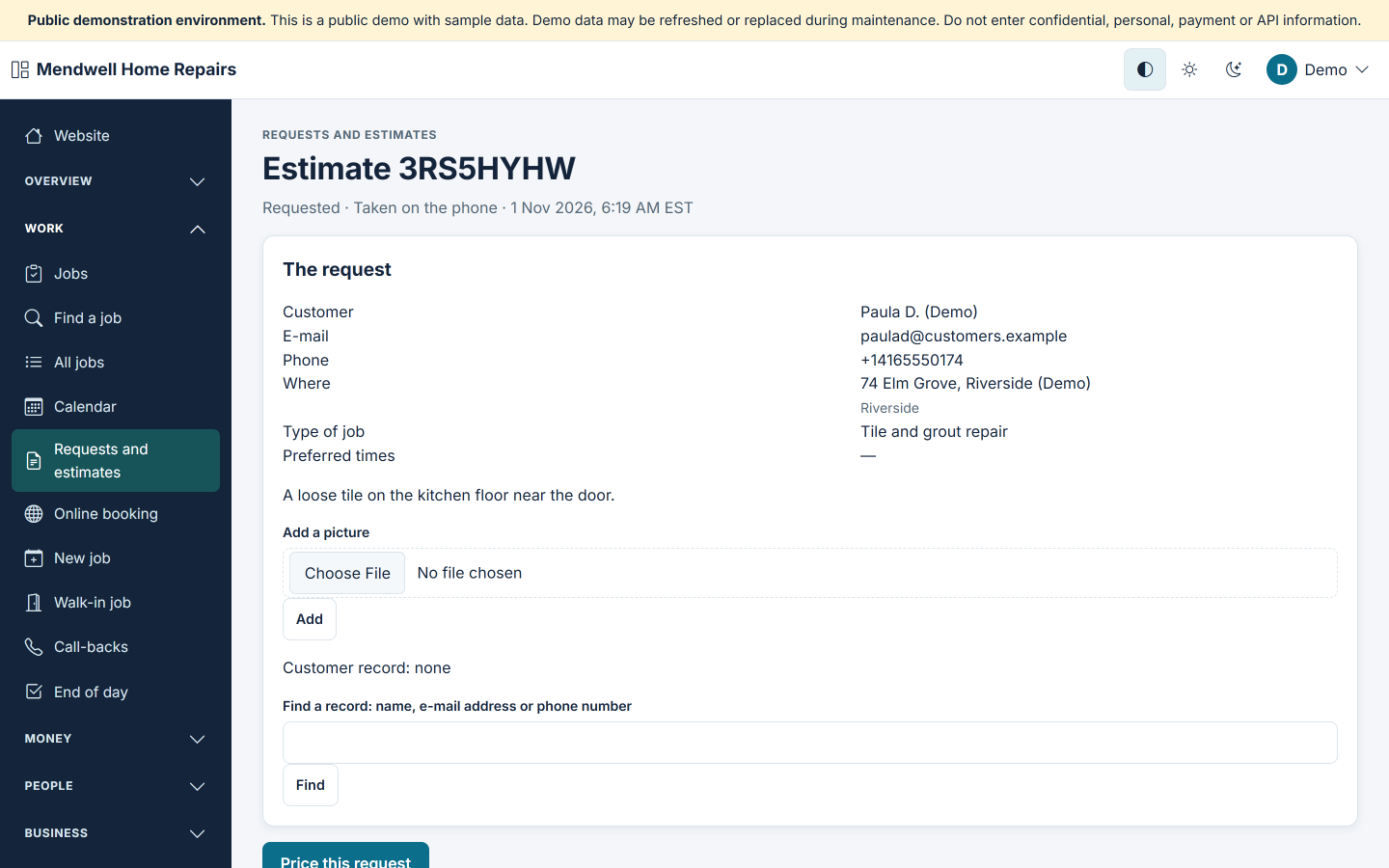
You price a request into an estimate and send it; the customer approves a specific version online, and a newer version replaces the older one. When the estimate proposes a time and that time is taken before the customer approves, the approval still goes through: the customer is told you will contact them to arrange a new time, and the estimate shows Time no longer free — agree a time with the customer and book the job from the estimate. Added work on a job needs the customer's approval before it is done: a worker proposes it from the app without prices, and you price and send it.
Invoices and payments #
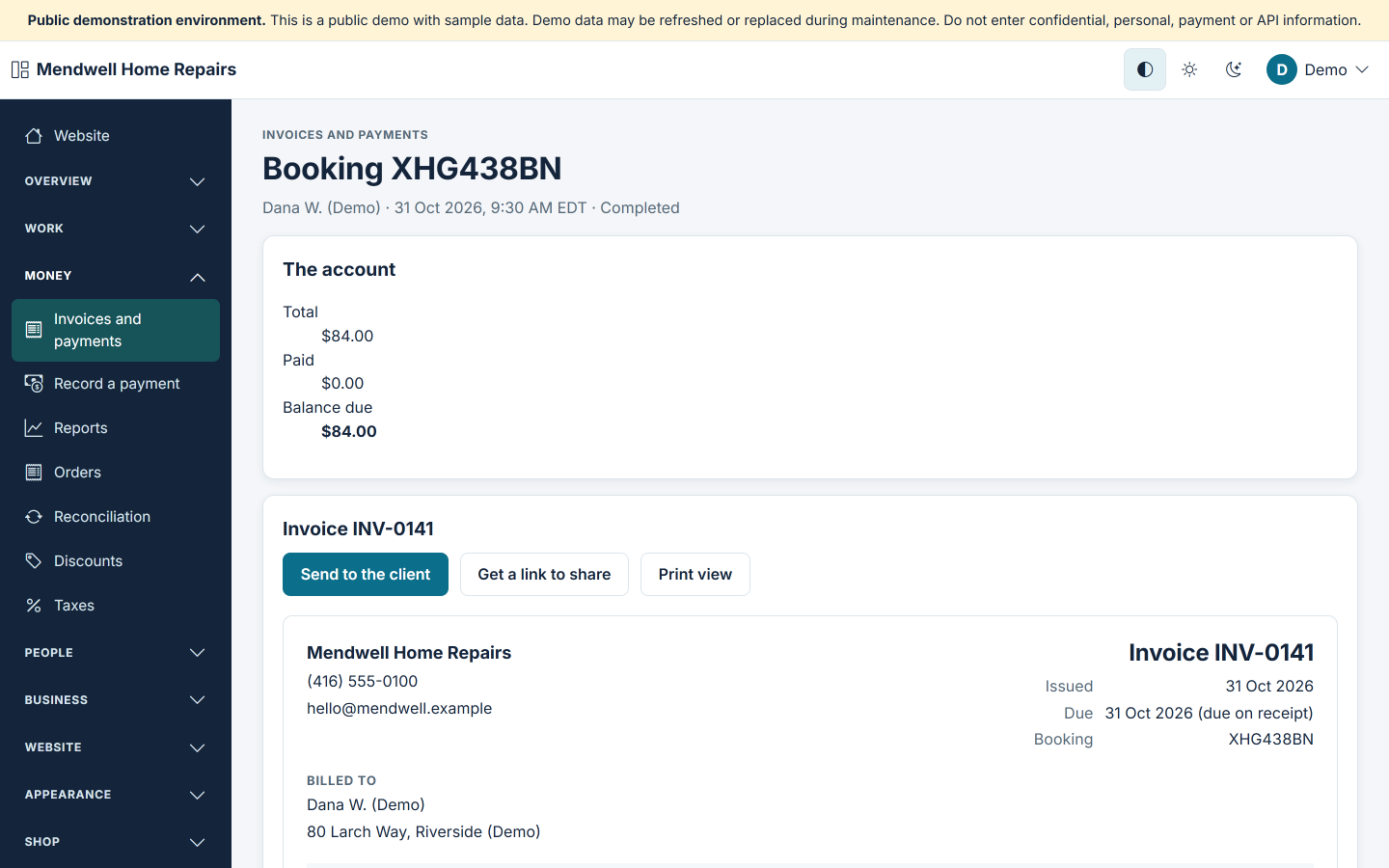
Money → Invoices and payments — Invoice a booking: find the job by its Booking reference and open it to invoice it. Drafts have no number until they are issued; issued numbers follow your numbering with no gap, and a void invoice keeps its number. Each invoice shows its total and its balance due; deposits and partial payments are counted against it.
Money → Record a payment lists the jobs assigned to you that have a balance due — for the jobs you do yourself — to record cash or a card payment taken at the door. Your worker records a payment taken at the door from the app (At the door → Record a payment), at most the balance due, and the office sees it at once. Refunds and changes stay with the office.
Type every amount — a price, a payment, a refund or a worker's pay — with digits and a point for the decimals, such as 12.50. An amount with a comma or a space ("12,50", "1,250.00") is refused with an example of what to type, and nothing is saved.
Money → Orders lists every order, its payments and refunds; Money → Reconciliation shows what is still being confirmed with the payment providers (the site's scheduled task asks them every few minutes); Money → Discounts and Money → Taxes hold your discounts and tax classes. Prices are always worked out by your site, never taken from the customer's browser.
Customers #
People → Customers lists everyone who booked or paid online with a verified e-mail address or phone number, your customers' accounts and the customers your team added (Add a customer). A customer's page shows their jobs, orders and messages; you can attach a phone job to the record and keep the team's notes.
Workers and your team #
- People → Workers: Add worker, each worker's Schedule (working days and hours) and Edit. Phone numbers and e-mail addresses of workers are never shown to customers.
- People → People: every account; Add a staff member gives a team member an account with its role and a one-time link to choose their password.
- People → Workers' sign-in: link each worker to the account they sign in with (Link, Unlink).
- People → Team: the staff's public profiles for the website. People → Deletion requests: the customers' requests to delete their account.
Messages and reminders #
- Business → Reminders: up to two reminders before each job, each with its hours before and its channels, and the Quiet hours in which no reminder is sent (from 1 to 12 hours; they may cross midnight). A change reaches jobs already booked too.
- Business → Messages: every message sent to customers and staff and what happened to it — Waiting, Sending, Sent, Failed, Unknown — check before sending again or Not sent — by channel. A message marked "Unknown" may have arrived: check before sending it again.
Reviews #
Reviews → Reviews lists the reviews Waiting to publish, Published and Hidden. Only customers with a completed job or a delivered or collected shop order can review; a review publishes itself after the days you set (7 by default). You reply to a review, and you hide one only for a listed reason; each action is logged, and approved low ratings stay visible. The settings say whether every customer is asked for a review and what your public page says about how reviews are checked.
The shop #
Shop → Products (New product), Categories, Stock, Shop orders, Returns, Delivery and Shop reports: sell spare parts and refurbished items with condition labels, your warranty or returns note, delivery or collection. "Shop" shows on your website once a product is on sale.
Reports and your data #
- Money → Reports: your jobs and your money for the days you choose (This month, Last month, Last 30 days, This year, or From and To): jobs, received, payments, refunds, due on completed jobs, cancelled or no-show, jobs by status and by worker. The figures match your payments ledger to the cent.
- Business → Import and export: download customers, services, jobs, invoices and payments as CSV files that spreadsheet programs open, or import customers and services from one. An import is checked and shown to you before anything changes; an export stays for 24 hours. Files with personal details: keep them safe and delete them when you are done.