
The workers’ app: jobs, proof and payments
Workers use the business's app — the same app your customers use, built from the Flutter source of this edition and published under your own developer accounts (see the app build guide in the Flutter source package). The administration area is the owner's; workers never need it.
Video tutorial #
Watch Jobs and the workers' app on YouTube
Before a worker signs in #
The owner gives the worker an account with the Worker role (People → People → Add a staff member) and links it to their worker record (People → Workers' sign-in). The worker chooses their password from the one-time link they receive. Once linked, they see their own jobs and hours in the app and are told when a job is given to them.
Signing in #
In the app, the worker enters their e-mail address and either asks for a code (Send me a code, then Your code from the e-mail) or chooses Sign in with a password. An account that may book and work at the same business is asked once to Continue as a worker or a customer; to switch later, sign out and choose again.
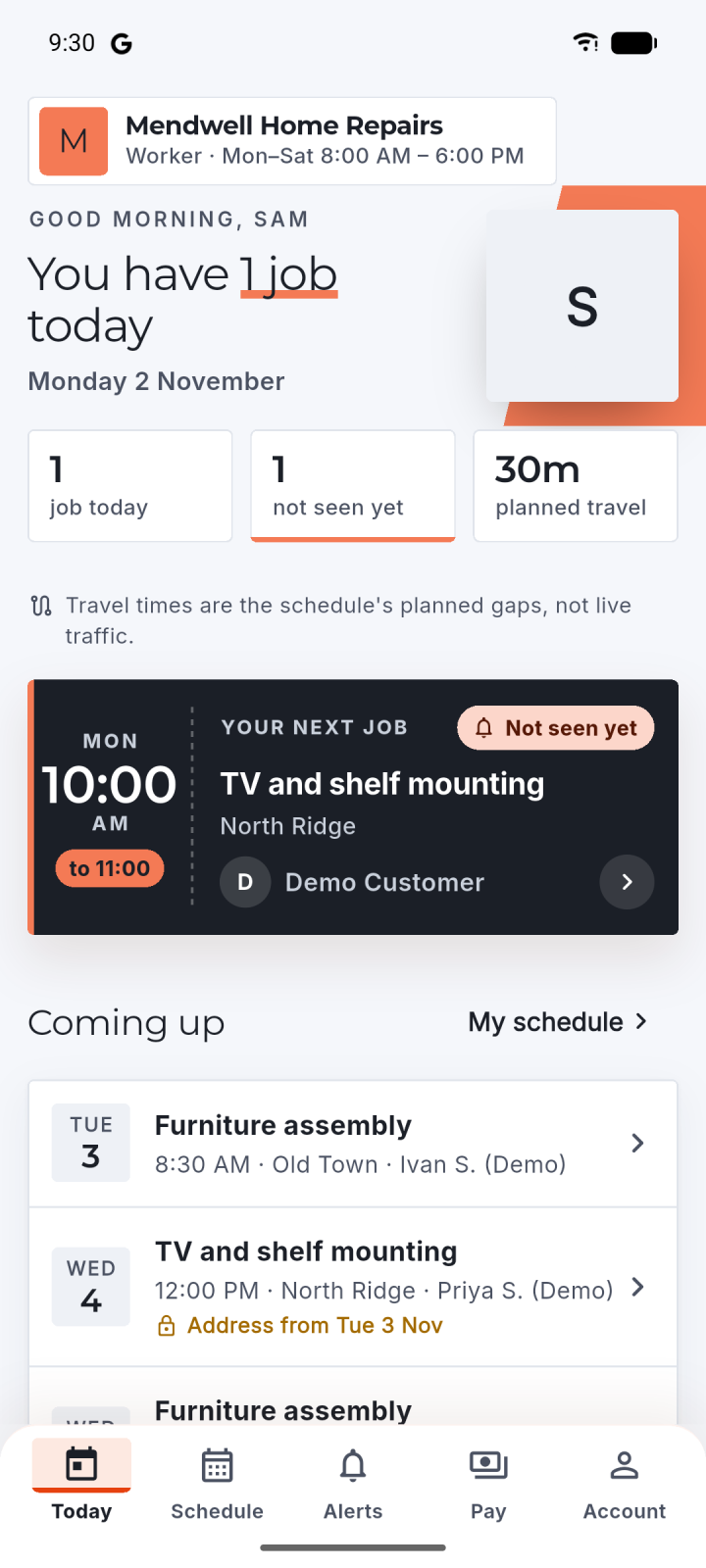
The app's tabs for a worker are Today, Schedule, Alerts, Pay and Account.
Today #
Today lists the worker's jobs of the day, with the ones not seen yet and the planned travel between them. Only the worker's own jobs are shown. New jobs show here and in Alerts.
A job #
Each job shows its reference, its time, its services and where it is. For a job at the customer's address, the address and the customer's phone show only around the visit: until then the job says "Address hidden" and "Phone hidden". Once shown:
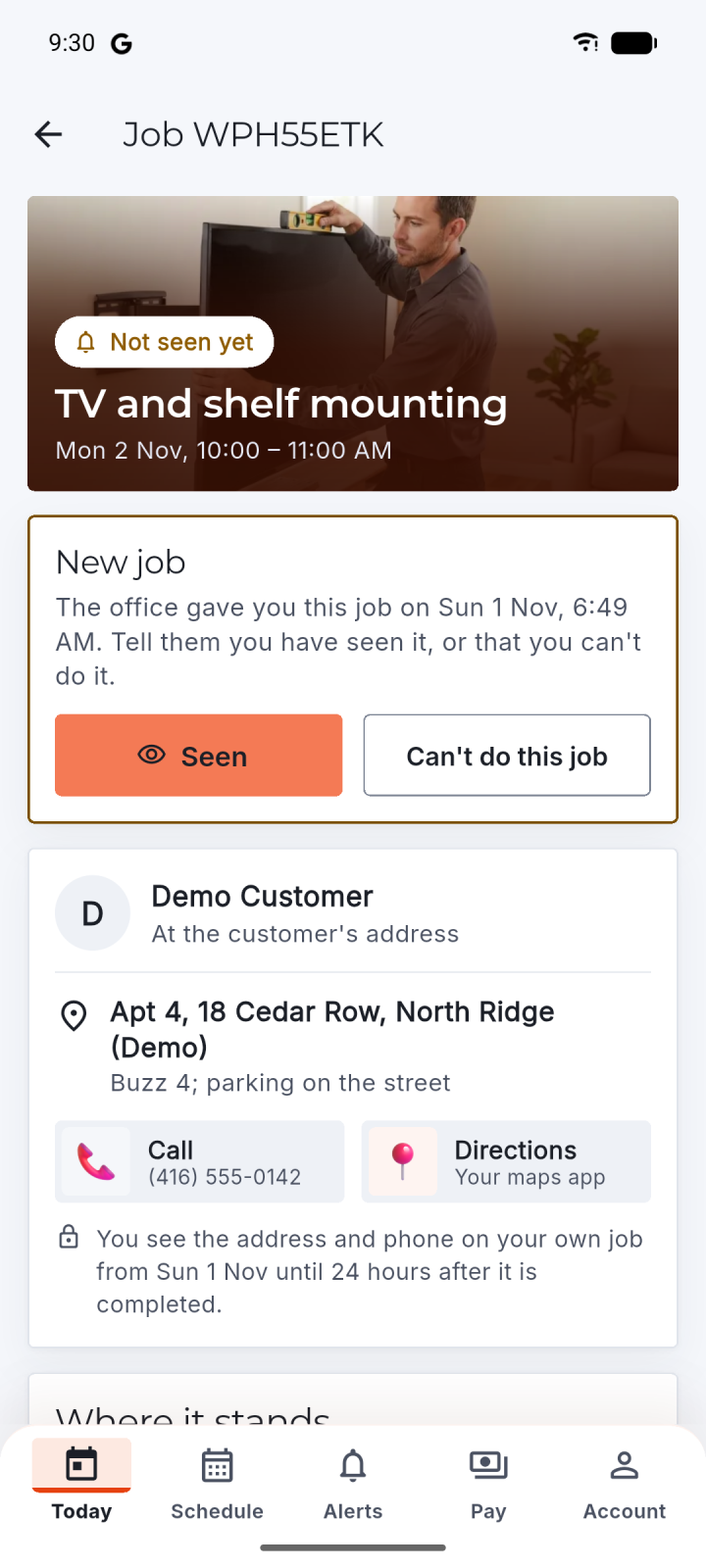
- Call rings the customer;
- Directions opens the address in the phone's own map app.
The worker answers each new job:
- Seen — the job is theirs and noted;
- Can't do this job — the owner is alerted at once, with optional Details; the job stays theirs until the owner reassigns it.
On the day #
On my way: workers can tell a customer they are on the way, with the arrival time they pick — a switch in your settings, off until you turn it on; no GPS or live tracking. You switch it on in System → Website settings (Booking: "On my way" alerts with an arrival estimate for jobs at the customer's address, and from how many hours before the start it may be said). On a job at the customer's address the worker taps On my way and picks the arrival time; the customer's job shows it, and the worker can say Running late. Arrived ends it.
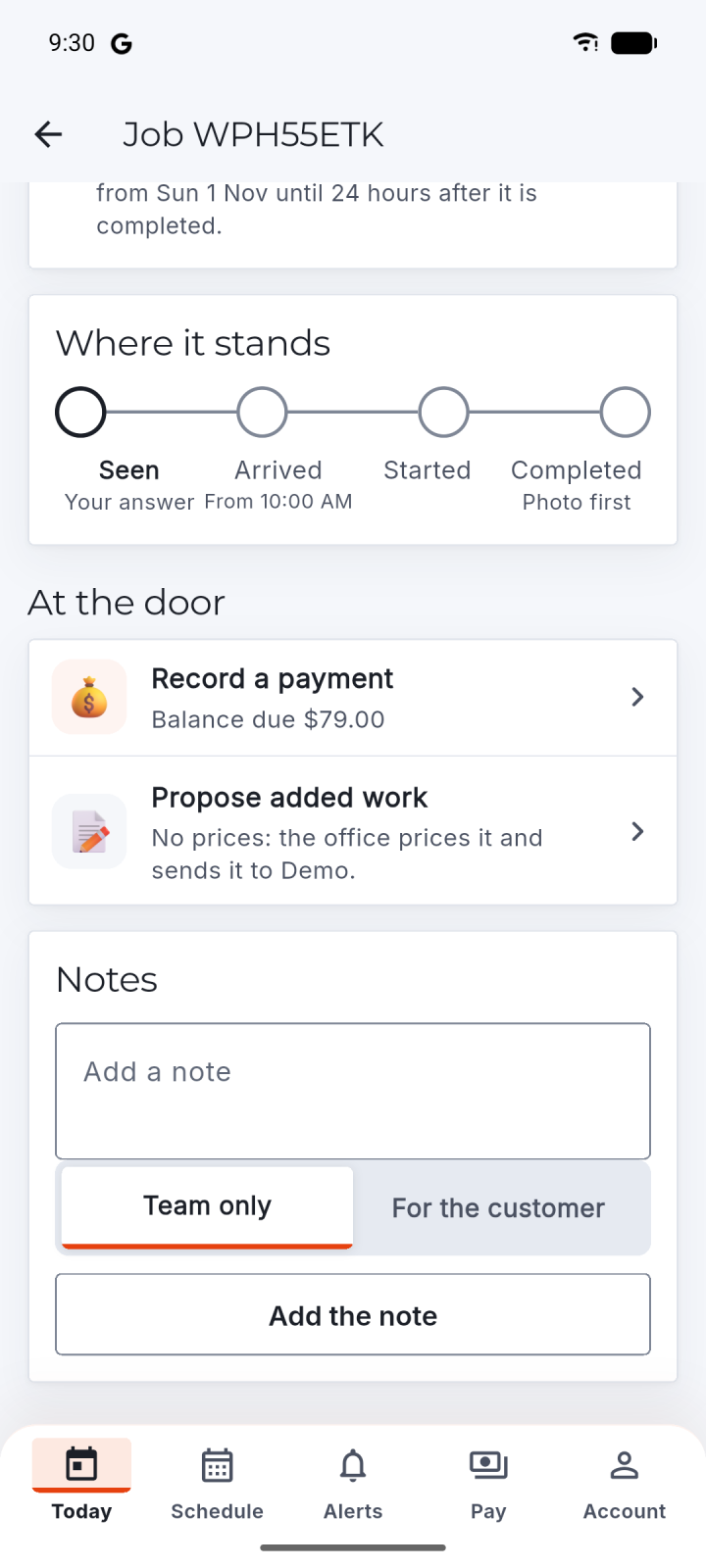
Under Progress, the worker marks Arrived, then Start the job. Mark no-show is for a customer who was not there and could not be reached.
To finish:
- Proof photos: Camera or Gallery. The job shows how many photos are needed and sent; a failed upload can be retried or removed.
- Finish: where the business asks for it, the customer's completion code. After too many wrong tries the code locks, and the office can complete the job instead.
- Mark completed. The business sets how many proof photos are needed and whether the customer's code is asked for.
Notes keeps a note For the customer or Team only (Add a note).
At the door #
- Record a payment: for cash or a card payment taken at the door — how it was paid, the amount (at most the balance due), the date and an optional reference and note. Type the amount with digits and a point for the decimals, such as 12.50: while the amount cannot be recorded — a comma, nothing, or more than the balance — the screen says why and Record the payment stays off. The office sees it at once; refunds and changes stay with the office.
- Propose added work: describe extra work the customer asks for, without prices; the office prices it and sends it to the customer, who approves it before it is done.
Schedule, alerts and pay #
- Schedule (My schedule) shows the worker's working days, days off and time off. Asking for time off in the app comes in a later version: the worker asks the business meanwhile.
- Alerts lists new, changed and removed jobs, with their times in your business's time zone. Alerts come to the phone and by e-mail; an alert never shows a customer's personal details.
- Pay (My pay) shows the worker's pay records — per-job amounts and paid or not paid yet — read only, as the business sets them. It is not payroll.